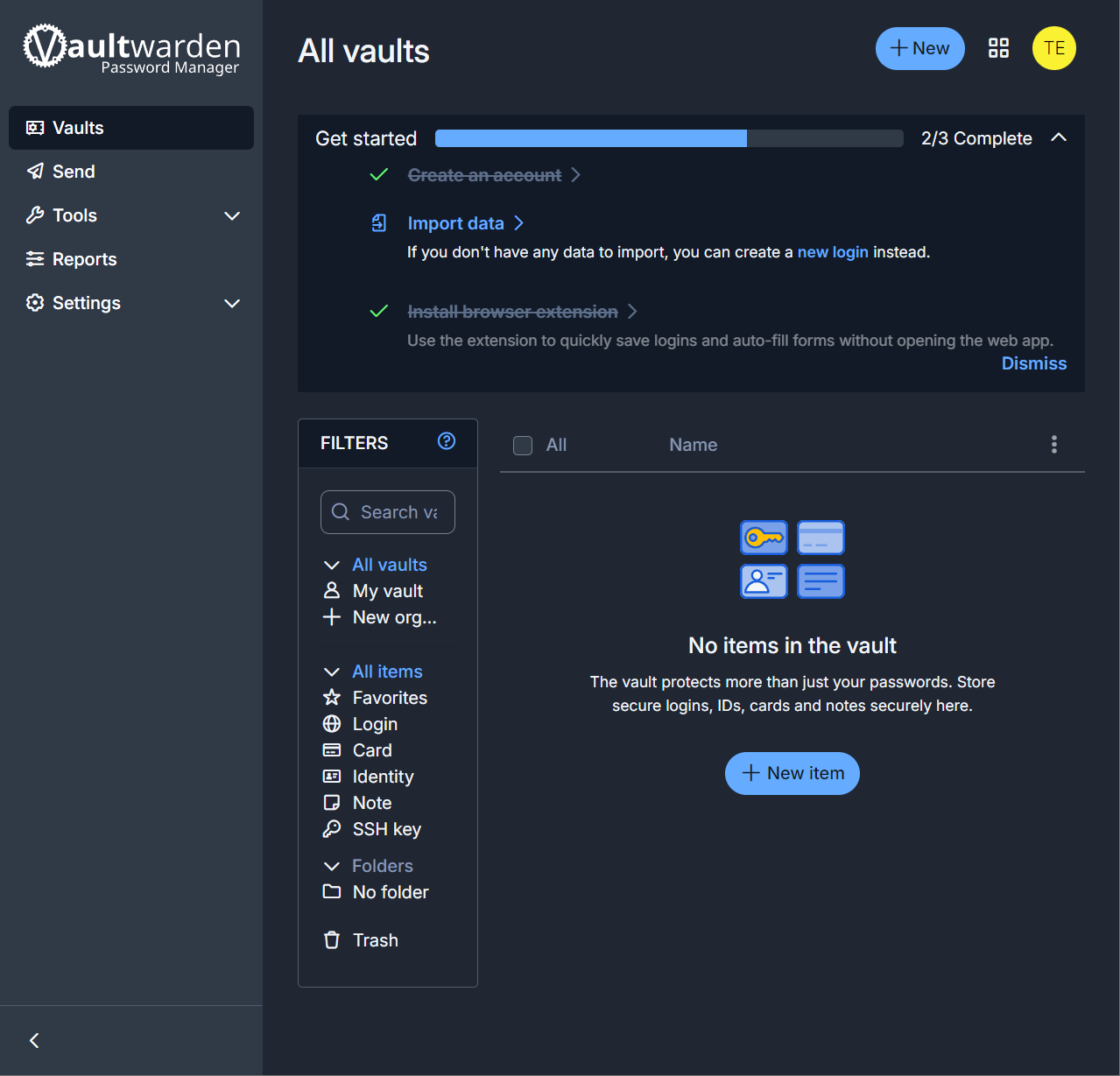
Sign-Up
Step 1
Go to the webvault site to sign-up for an account (Note: you must already have an account created with the authentication server).
Step 2
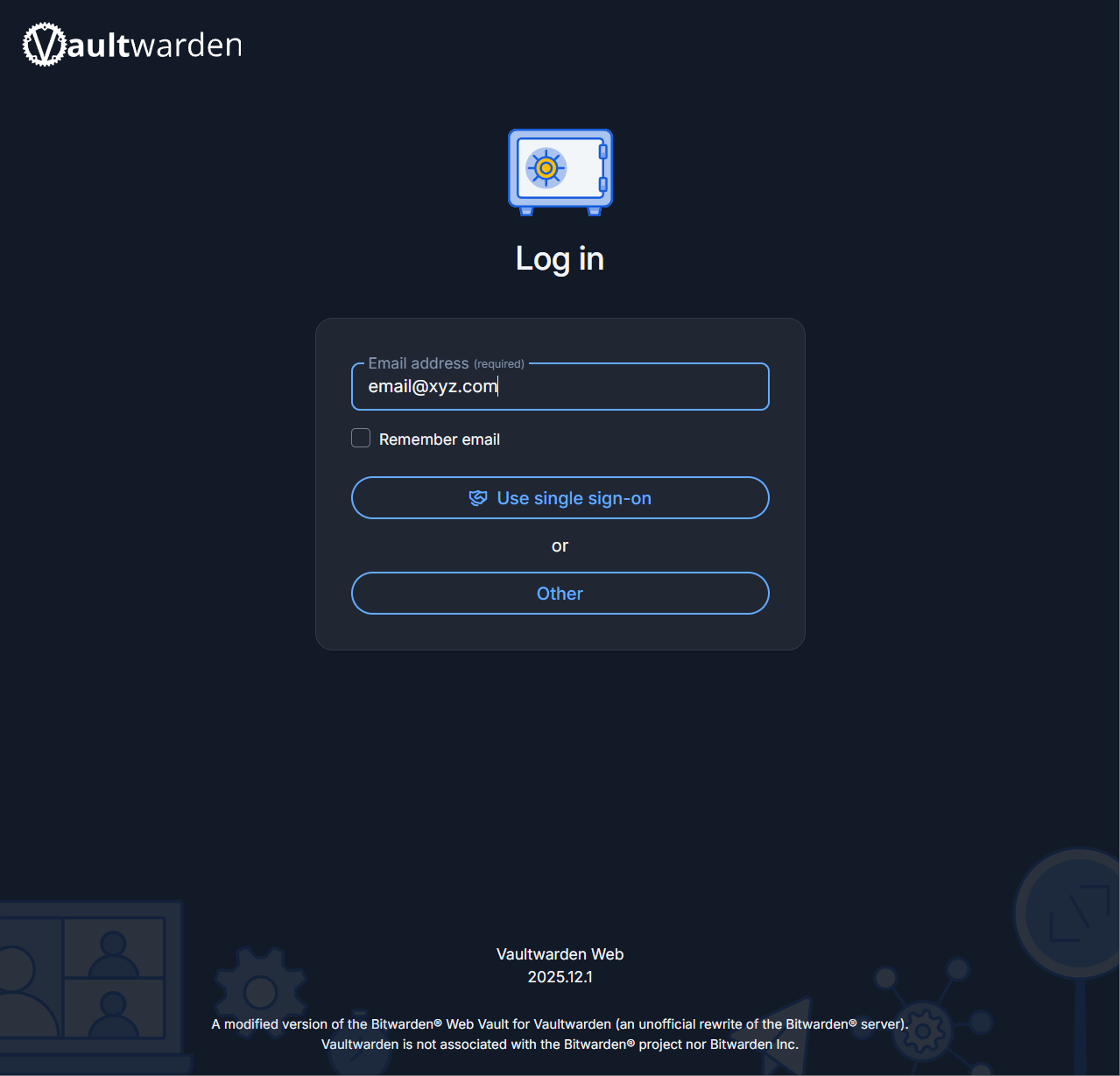
You'll be presented with a log-in page. Fill in the email address with any address (it does not matter what it is as along as it follows the format email@xyz.com)
Step 3
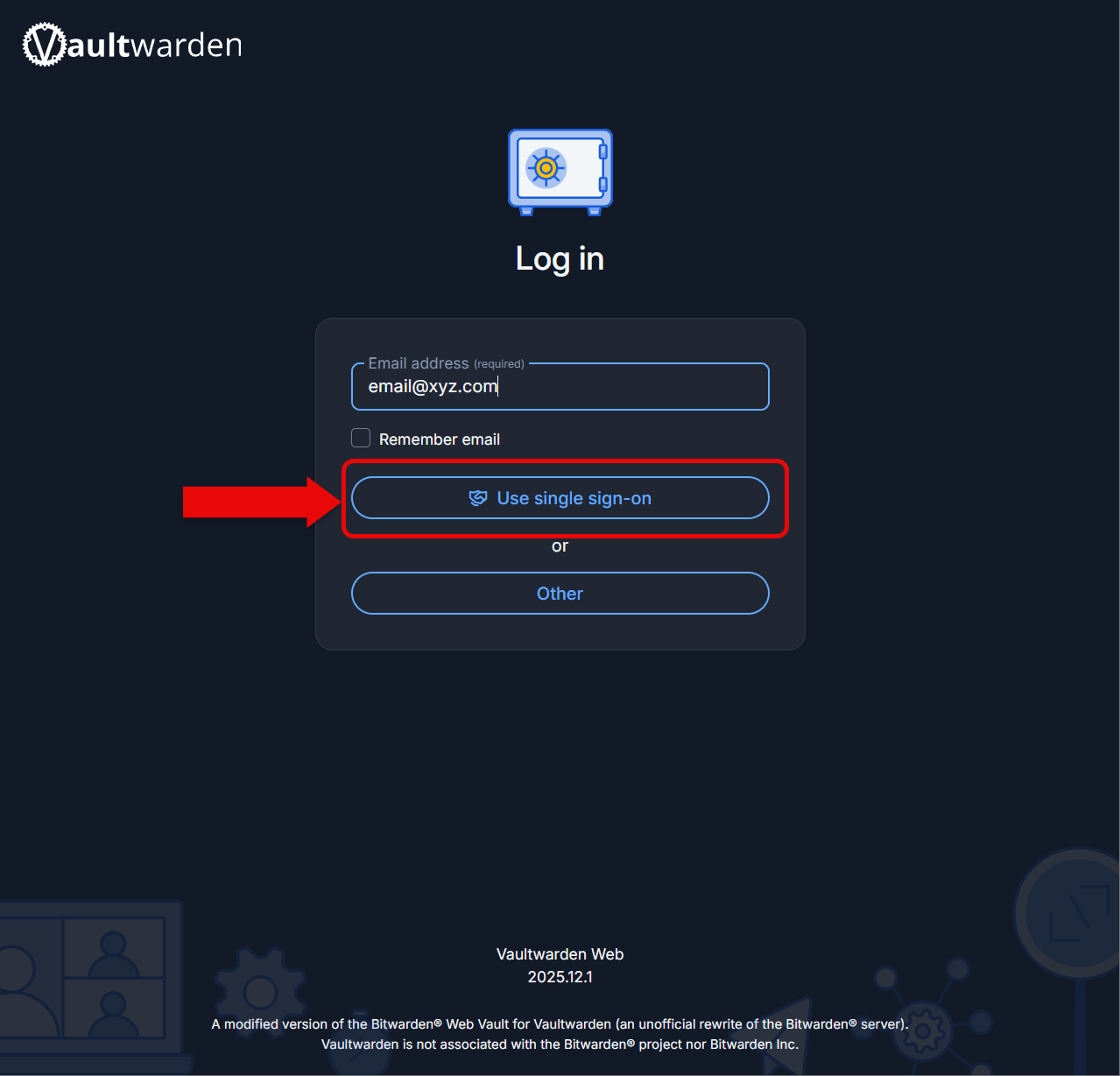
Click on Use single sign-on to log create your account.
Step 4
Log into the authentication like normal. You will be redirected back to Bitwarden shortly.
Step 5
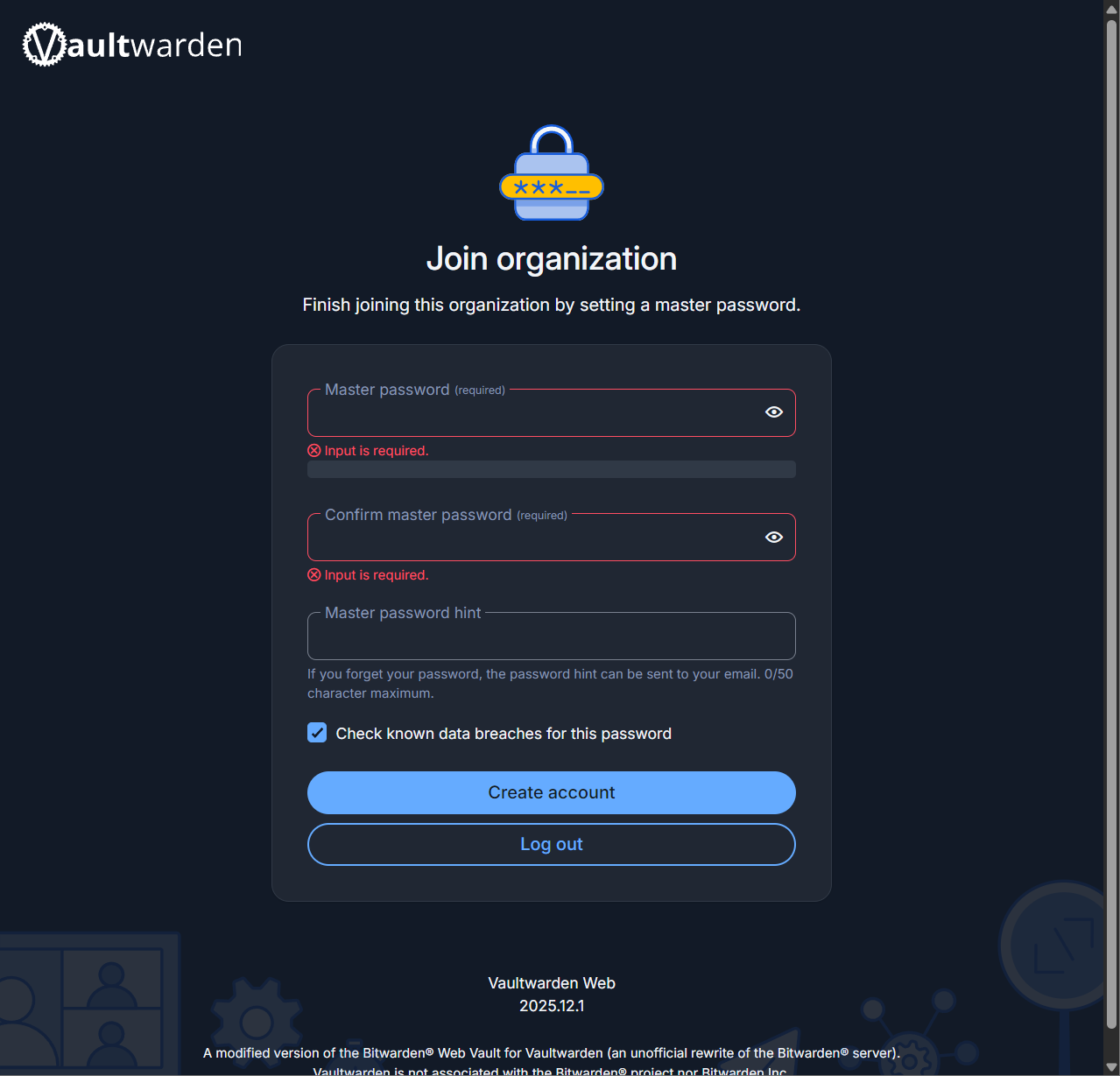
Next, enter a master password that you'll need to type in every time you log into the manager. This is for security purposes.
Step 6
Click create account to finish the process.
Step 7
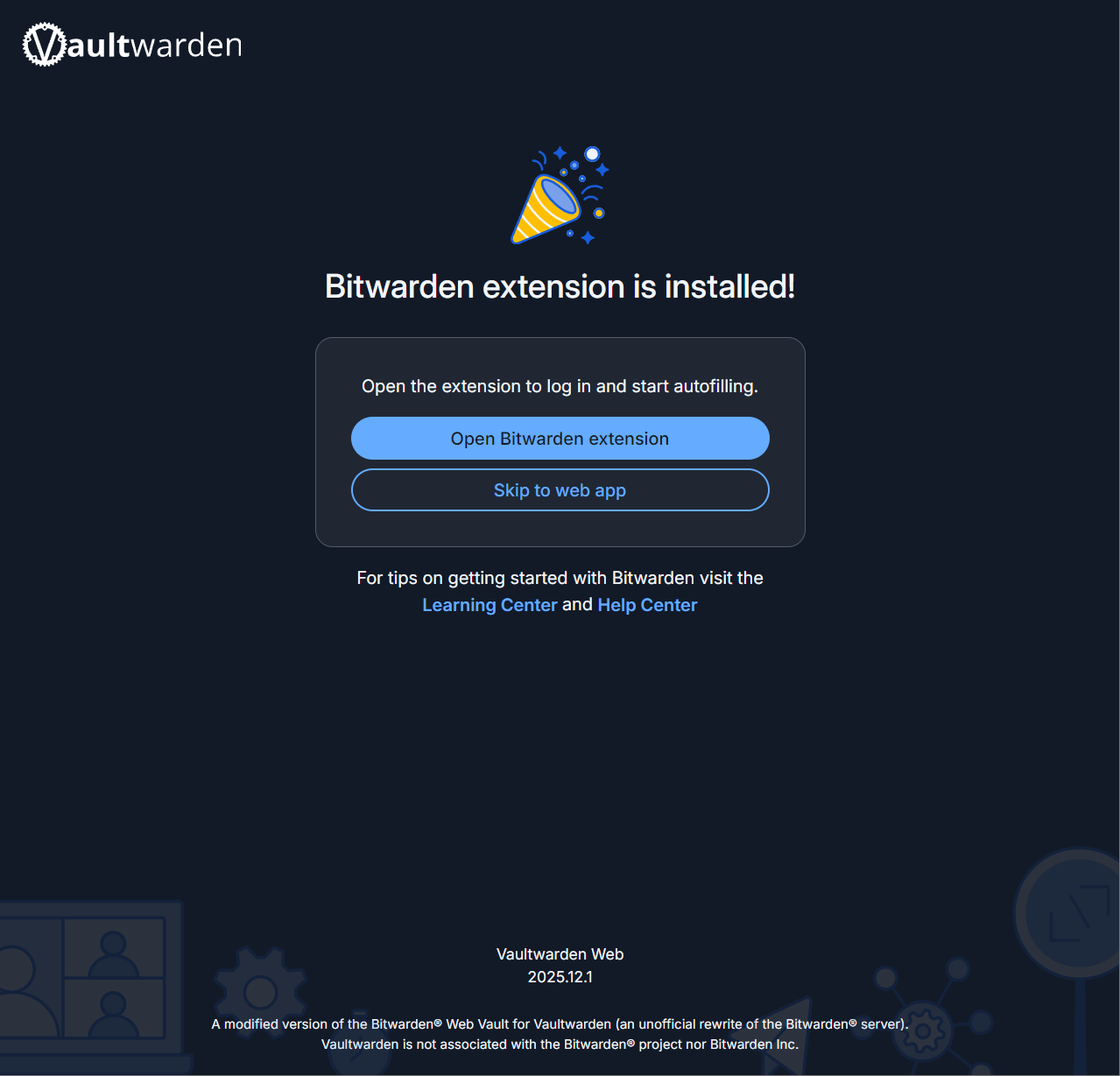
If you plan on using the extension inside the browser, go ahead and click on the button to go to the download page.
Step 8
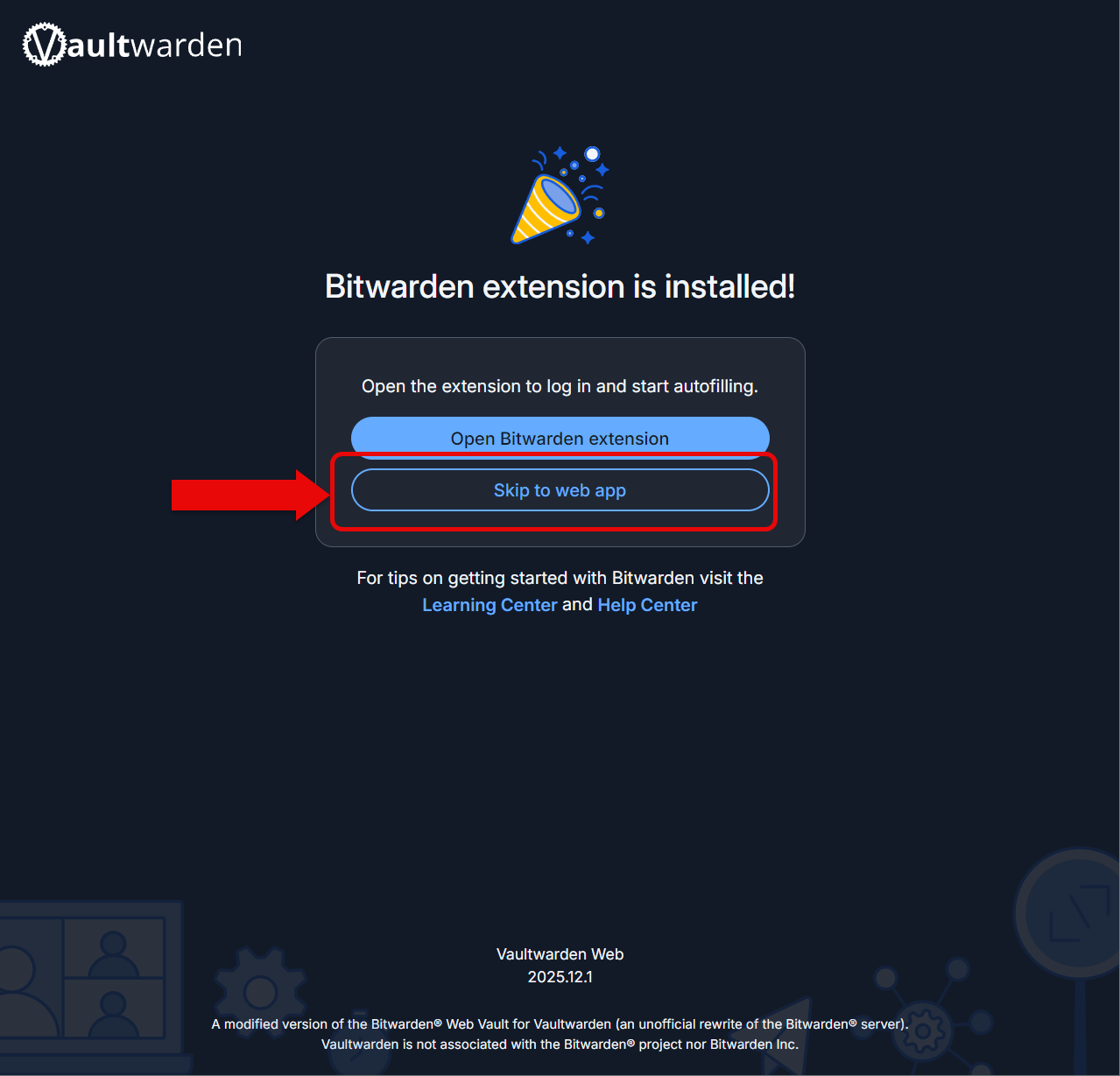
Go ahead and click skip to web app when/if you've finished installing the extension.
Step 9
Go ahead and let the administrator know you'd like to be added to the organization. Once that's happened, you'd need to learn how to use Bitwarden.Bitwarden.