
Using the Desktop App
Step 1
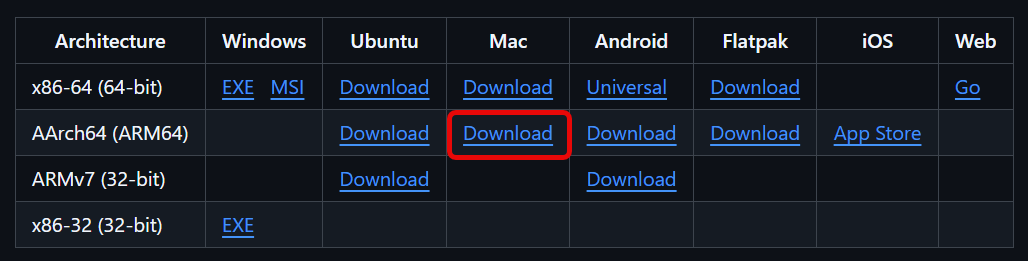
First step is to install the desktop client on your machine. Visit the official repository and download the correct version.
If you have an M1, M2, etc. Apple machine, select ARM64
Step 2
Once downloaded, install the application.
Step 3
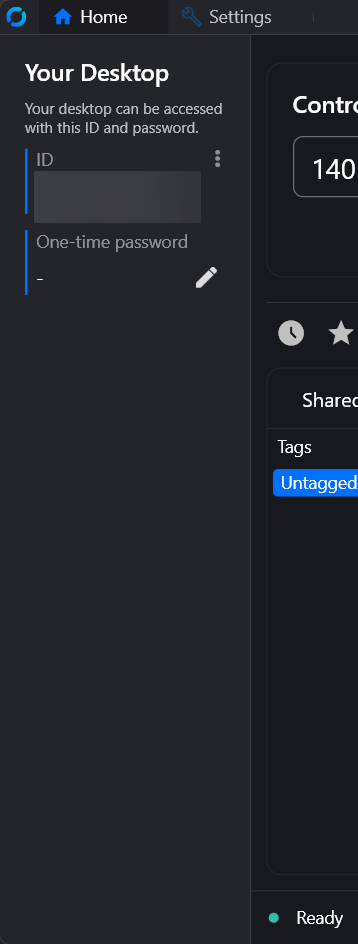
Open the application. You'll be greeted by the interface. On the left-hand side, you'll see some prompts to allow permissions for certain features for the software. Go ahead and go though the prompts to accept them, allowing the software the permissions needed for remote desktop. You're interface should look like this when all permissions have been fixed:
Step 4
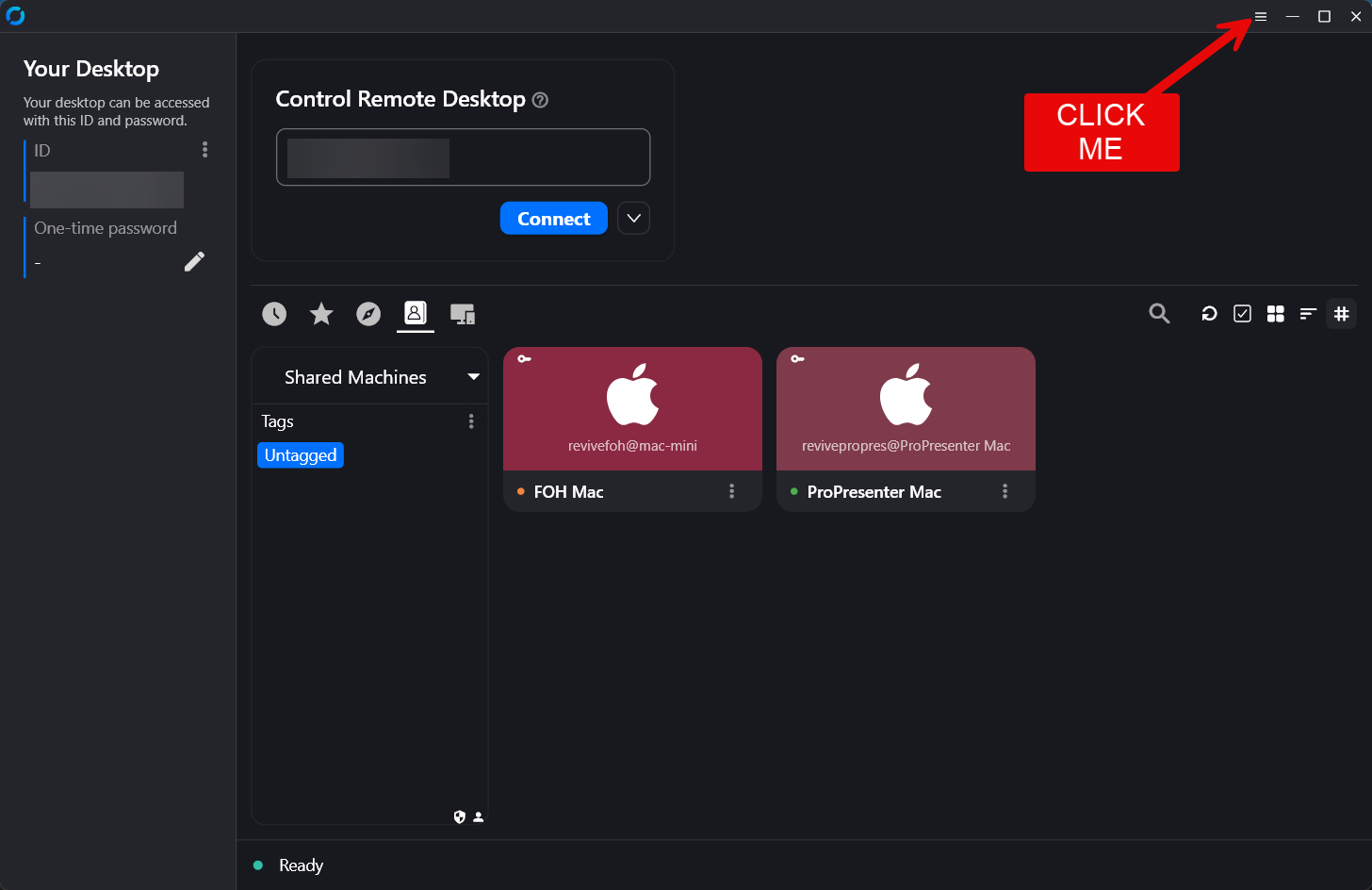
In order to log into you created, you'll first need to configure the network settings. This will only be done once, so don't worry about the complexity. Go ahead and copy the string below, then navigate to the hamburger menu
9JyZy9mLpZ3buVmdpZXZy5SZ09WblJ3LvozcwRHdoJiOikGchJCLi0TUOx2YjdVbrkWQBVGO4BnVixkTvhXVlR3MzokeLl2MWNHO5N1MwsST4VlWiojI5V2aiwiInJ3bukmdv5WZ2lmdlJnLlR3btVmciojI0N3boJye
Step 5
Step 6
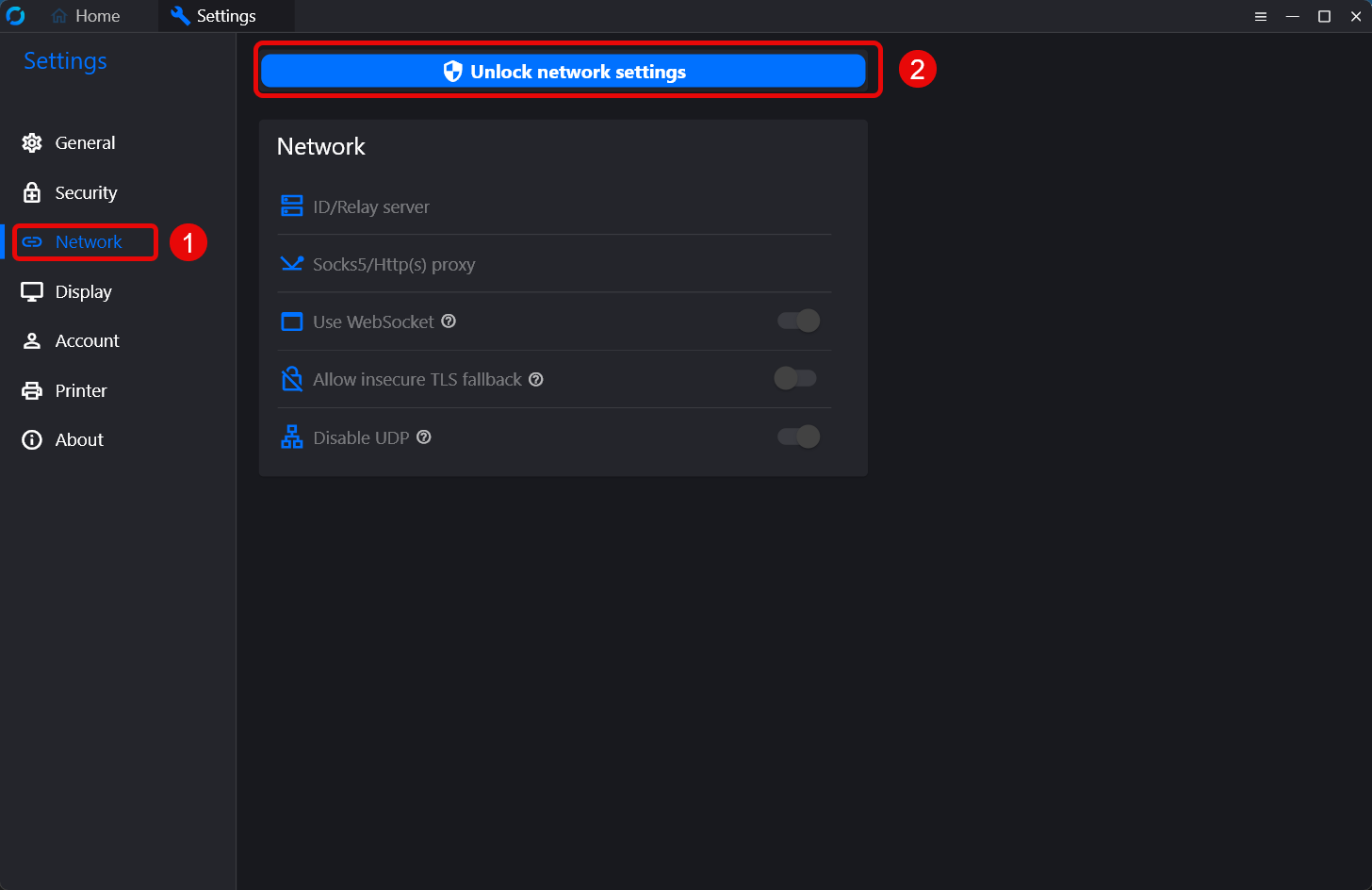
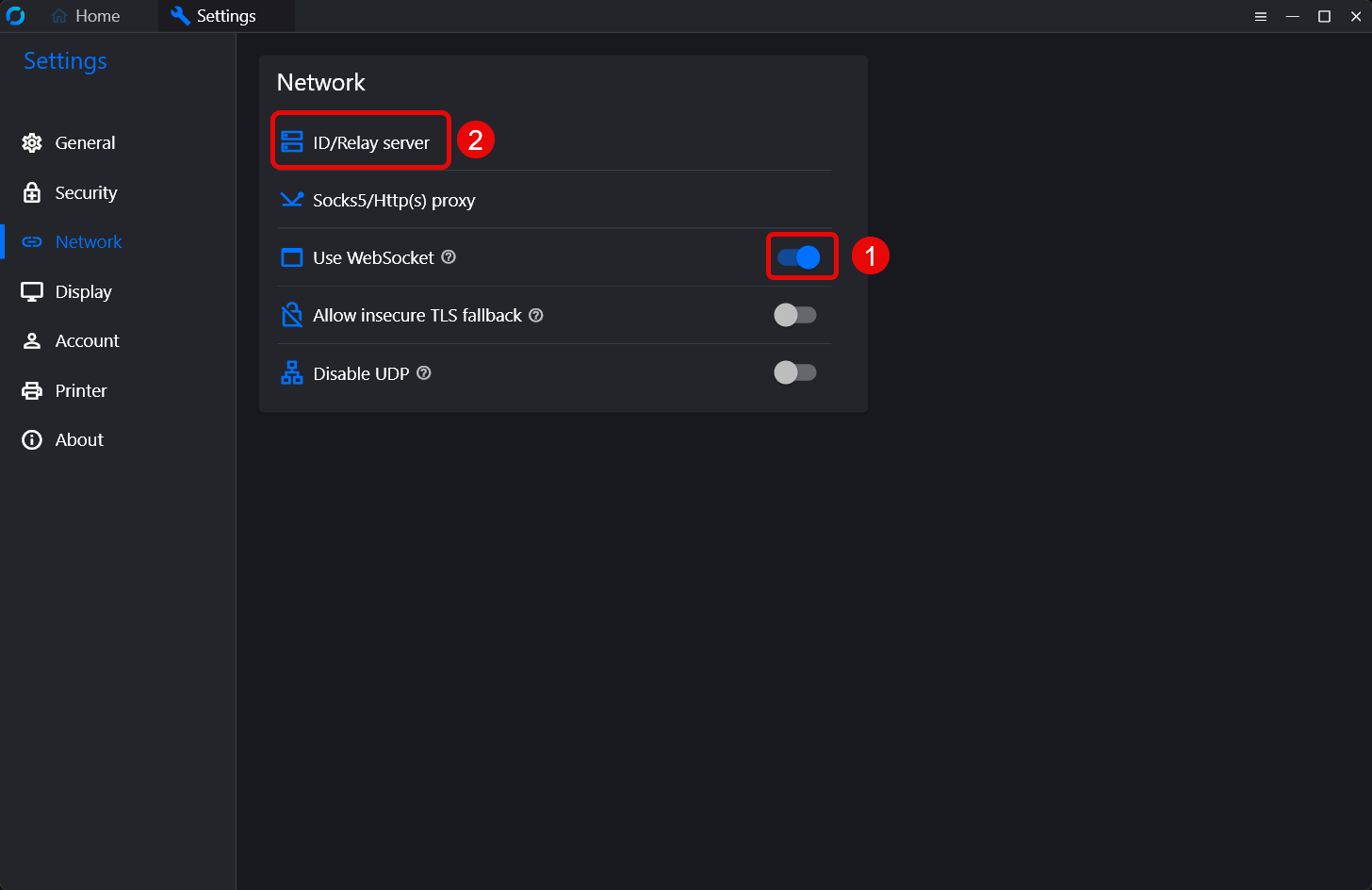
Go ahead and toggle the Use Websocket, then navigate to the ID/Relay server section.
Step 7
Step 8
Step 9
Step 10