
Get Started with the Web App
Get Started
The Bitwarden web app provides the richest Bitwarden experience for personal users and organizations. Many important functions such as setting up two-step login or administering an organization must be done from the web app.
TIP
The web app is accessible from any modern web browser at vault.bitwarden.com and vault.bitwarden.eu. If you are self-hosting Bitwarden, access to the web app will be located at your configured domain, for example https://vault.revivenovi.org.
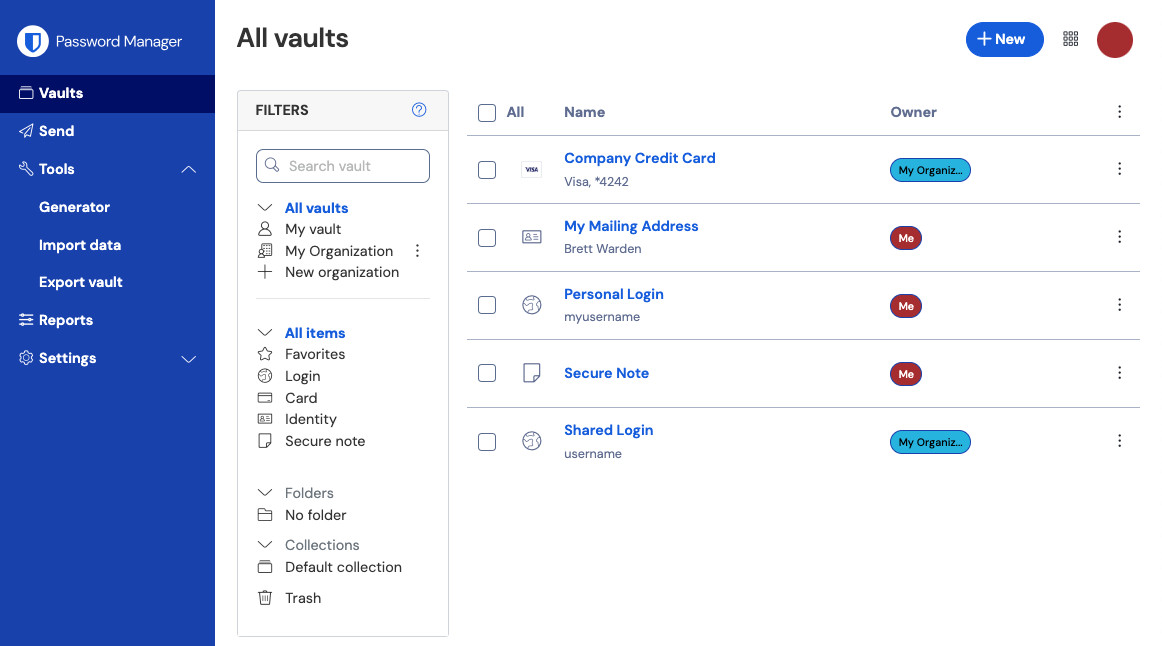
When you first log in to your web app, you'll land on the All vaults view. This space will list all vault items, including
.
First steps
In the previous screenshot, the All vaults view is displaying All Items in all vaults. Members of
will have other vaults listed here. Using the Filters column, you can organize your vault into Favorites and Folders.
Let's start by setting up a new folder and adding a new login to it:
Create a folder
To create a folder:
-
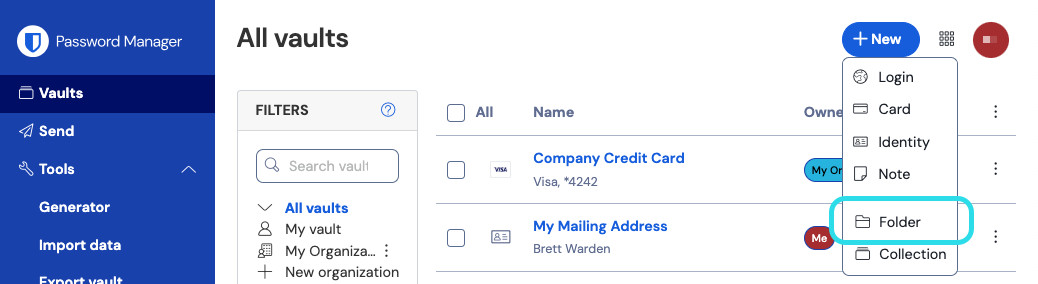
Select the + New button and choose Folder from the dropdown:
New folder -
Enter a name (for example,
Important Logins) for your folder and select Save.tipTIPAdd a login
To add a new login item:
-
Select the + New button and choose Login from the dropdown.
-
Enter an Item name. Names will help you easily identify items in your vault, so give this item a recognizable one (for example,
My Gmail Account). -
From the Folder dropdown, select the name of the folder you want to add this item to (for example, the
Important Loginsfolder we created earlier). -
Enter your Username and Password. For now, enter your existing password. We will help you
-
In the Website (URI) field, enter the URL of the website (for example,
https://accounts.google.com). If you don't know what URL to use, navigate to the website's login screen and copy it from your address bar.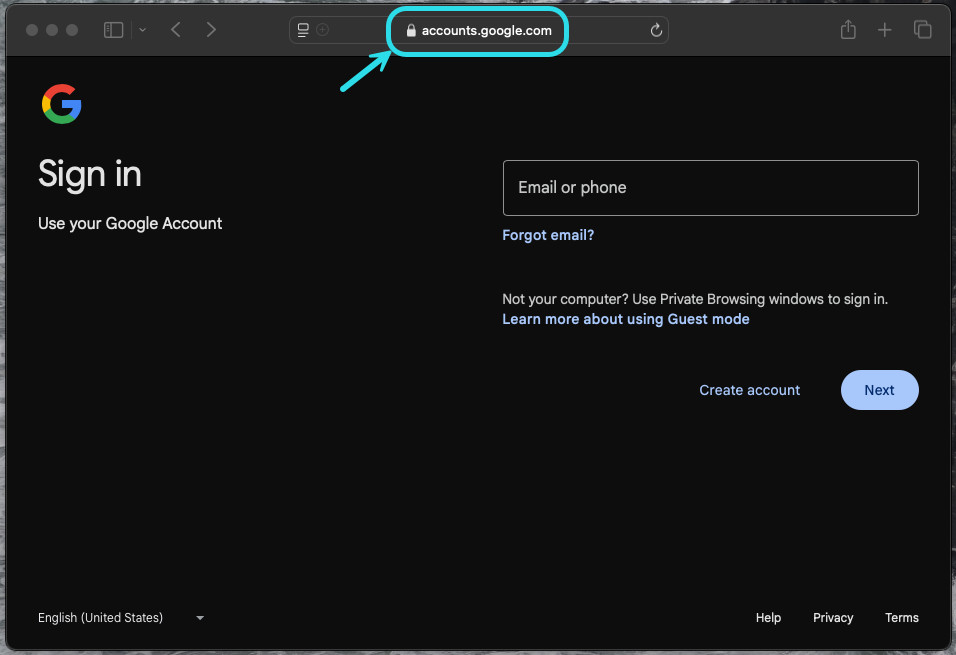
Locating URLs -
Select the
(→)when it is a favorite. -
Nice work! Select the Save button to finish adding this item.
Generate a strong password
Now that a new login is saved in your vault, improve its security by replacing the existing password with a stronger one:
-
In your vault, select the item you want to secure to open it and select the Edit button.
-
In a new tab or window, open the corresponding website and login to your account.
-
On that website, navigate to the area where you can Change your password.
Typically, you can find this in a Your Account, Security, Sign in Settings, or Login Settings section.
-
Most websites require you to enter your Current password first. Return to your vault and select the Copy icon next to the Password field. Then, return to the website and paste it into the Current password field.
You might have the old password memorized, but it's a good idea to get in the habit of copying and pasting your password. This is how you will be logging in once your password is replaced with a stronger one.
-
Return to your vault and click the
This will replace your Password with a randomly generated strong password. Moving from a password like
Fido1234toX@Ln@x9J@&u@5n##Bcan stop a hacker. -
Copy your new password with the same
-
Return to the other website and paste your strong password in the New Password and Confirm new password fields.
-
Once you Save the password change, you are finished!
-
-
-
-
-
-
-
Download Bitwarden Authenticator on your mobile device.
-
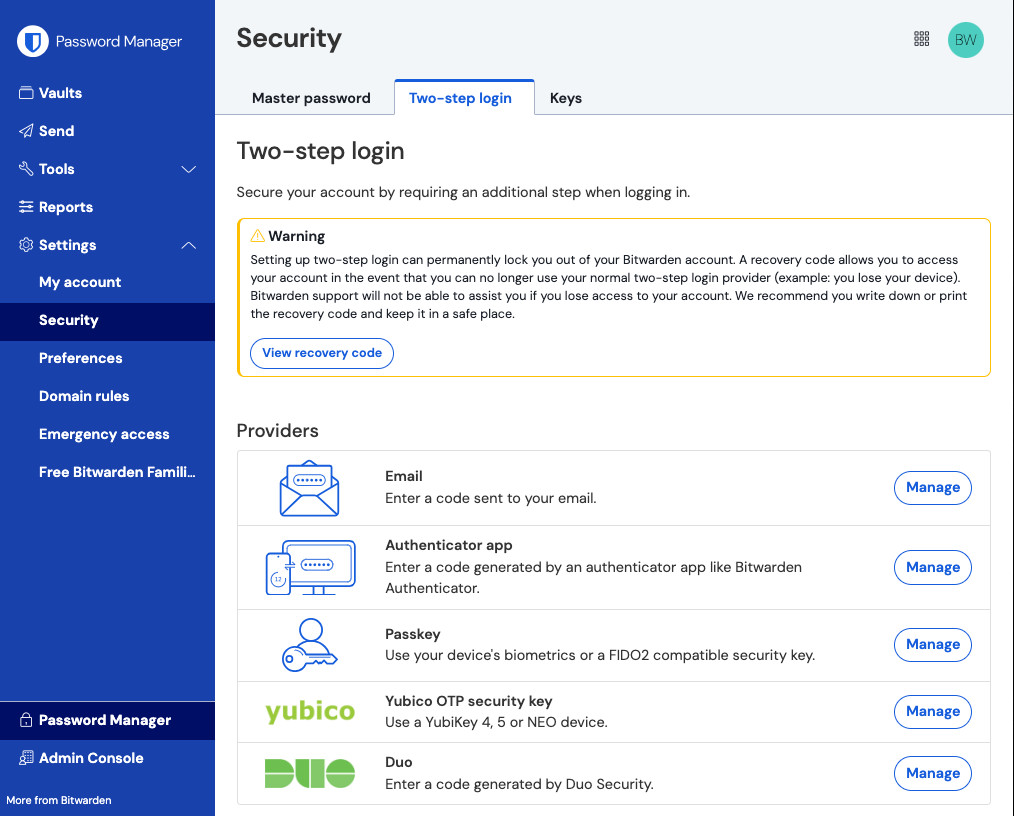
In the Bitwarden web app, select Settings → Security → Two-step login from the navigation:
Two-step login -
Locate the Authenticator App option and select Manage:
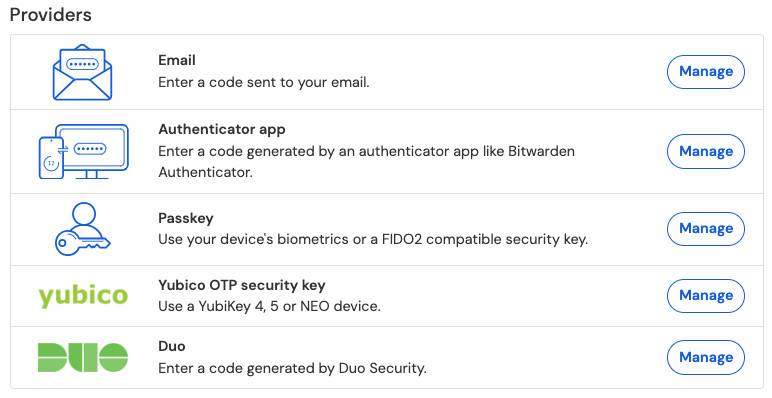
Two-step login providers You'll be prompted to enter your master password to continue.
-
On your mobile device, open Bitwarden Authenticator and tap the button.
-
Scan the QR code located in your web app using Bitwarden Authenticator. Once scanned, Bitwarden Authenticator will display a six-digit verification code.
-
Enter the six-digit verification code into the dialog box in your web app, and select the Enable button.
-
Select the Close button to return to the Two-step login screen, and select the View Recovery Code button.
Your recovery code can be used in the event that you lose your mobile device. This is a critical step to ensure you don't ever get locked out of your vault, so don't skip it!
-
Enter your master password and select the Continue button to get your recovery code.
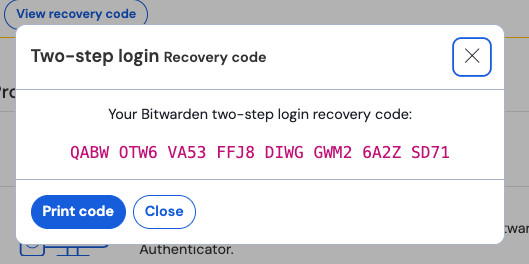
Example recovery code
tipTIP
If you entered something in the URI 1 field, click the
tipTIP
Don't worry about overwriting your existing password! If something goes wrong, Bitwarden stores a
Import your data
Good news! You don't need to repeat this process for every login if you have usernames and passwords saved in a web browser or other password manager. Use one of our specialized import guides for help transferring your data from:
Secure your vault
Now that your vault is full of data, let's take some steps to protect it by setting up two-step login. Two-step login requires you to verify your identity when logging in using an additional token, usually retrieved from a different device.
There are many
for two-step login, but the recommended method for a free Bitwarden account is using a mobile device authenticator app such as
:
Save your recovery code in the way that makes the most sense for you. Believe it or not, printing your recovery code and keeping it somewhere safe is one of the best ways to make sure that the code is not vulnerable to theft or inadvertent deletion.
-