# Get Started with the Web App

### Get Started

The Bitwarden web app provides the richest Bitwarden experience for personal users and organizations. Many important functions such as setting up [two-step login](https://bitwarden.com/help/setup-two-step-login/) or administering an [organization](https://bitwarden.com/help/about-organizations/) must be done from the web app.

<p class="callout info">The web app is accessible from any modern web browser at vault.bitwarden.com and vault.bitwarden.eu. If you are self-hosting Bitwarden, access to the web app will be located at your configured domain, for example https://vault.revivenovi.org.</p>

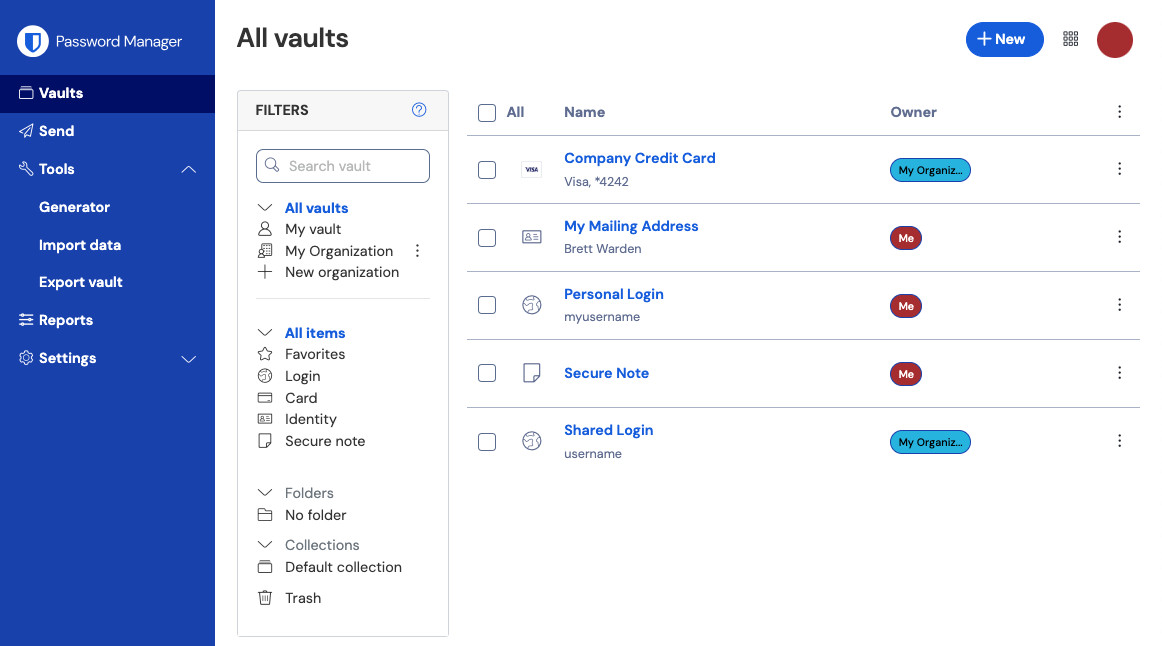
<figure class="mb-10 print:[break-inside:avoid]" id="bkmrk-password-manager-web"><div class=""><div class="relative overflow-hidden block max-w-full"><picture><source media="(max-width:400px)" srcset="https://bitwarden.com/assets/2xTpSA11EOCzx8VIuVffcF/d3bc18e7fc3c3cb0bf1779fad9262cd3/2024-12-02_13-42-14.png?w=400&fm=avif" type="image/avif"><source media="(max-width:800px)" srcset="https://bitwarden.com/assets/2xTpSA11EOCzx8VIuVffcF/d3bc18e7fc3c3cb0bf1779fad9262cd3/2024-12-02_13-42-14.png?w=800&fm=avif" type="image/avif"><source media="(min-width:801px)" srcset="https://bitwarden.com/assets/2xTpSA11EOCzx8VIuVffcF/d3bc18e7fc3c3cb0bf1779fad9262cd3/2024-12-02_13-42-14.png?w=1162&fm=avif" type="image/avif">![Password Manager web app](https://bitwarden.com/assets/2xTpSA11EOCzx8VIuVffcF/d3bc18e7fc3c3cb0bf1779fad9262cd3/2024-12-02_13-42-14.png?w=1162&fm=jpg)</source></source></source></picture></div></div><figcaption class="w-fit max-w-sm mx-auto text-center text-xs text-secondary-600 dark:text-secondary-300 mt-2 print:mt-1"><cite>Password Manager web app</cite></figcaption></figure>When you first log in to your web app, you'll land on the **All vaults** view. This space will list all vault items, including [logins, cards, identities, and secure notes](https://bitwarden.com/help/managing-items/).

## First steps

<div class="scrollspy group inline-block w-full relative" id="bkmrk-"></div>In the previous screenshot, the **All vaults** view is displaying **All Items** in all vaults. Members of [organizations](https://bitwarden.com/help/about-organizations/) will have other vaults listed here. Using the **Filters** column, you can organize your vault into **Favorites** and **Folders**.

Let's start by setting up a new folder and adding a new login to it:

### Create a folder

<div class="scrollspy group inline-block w-full relative" id="bkmrk--1"></div>To create a folder:

1. Select the + **New** button and choose **Folder** from the dropdown:
    
    <figure class="mb-10 print:[break-inside:avoid]"><div class=""><div class="relative overflow-hidden block max-w-full"><picture><source media="(max-width:400px)" srcset="https://bitwarden.com/assets/3BvTWidqL4xWQvFqBSiJIR/d68bc851d44df1b571eed16366159e0c/2024-12-02_13-50-55.png?w=400&fm=avif" type="image/avif"><source media="(max-width:800px)" srcset="https://bitwarden.com/assets/3BvTWidqL4xWQvFqBSiJIR/d68bc851d44df1b571eed16366159e0c/2024-12-02_13-50-55.png?w=800&fm=avif" type="image/avif"><source media="(min-width:801px)" srcset="https://bitwarden.com/assets/3BvTWidqL4xWQvFqBSiJIR/d68bc851d44df1b571eed16366159e0c/2024-12-02_13-50-55.png?w=1038&fm=avif" type="image/avif">![New folder](https://bitwarden.com/assets/3BvTWidqL4xWQvFqBSiJIR/d68bc851d44df1b571eed16366159e0c/2024-12-02_13-50-55.png?w=1038&fm=jpg)</source></source></source></picture></div></div><figcaption class="w-fit max-w-sm mx-auto text-center text-xs text-secondary-600 dark:text-secondary-300 mt-2 print:mt-1"><cite>New folder</cite></figcaption></figure>
2. Enter a name (for example, `Important Logins`) for your folder and select **Save**.
    
    <section class="max-w-8xl mx-auto">#####   
    
    
    <p class="callout info">For a cleaner vault, you can nest folders inside other folders</p>
    
    <div class="rounded-lg after:rounded-lg mx-5 lg:mx-9 bw-gradient-border-effect-1 relative p-[1px] after:z-1 after:content:[""] after:absolute after:top-[1px] after:left-[1px] after:right-[1px] after:bottom-[1px] after:bg-white dark:after:bg-secondary-900 mx-0! mb-8 rounded-sm! after:rounded-sm!"><div class="overflow-hidden relative z-3 gradient-bg-2 rounded-lg p-0 rounded-sm!">  
    </div></div></section>

### Add a login

<div class="scrollspy group inline-block w-full relative" id="bkmrk--2"></div>To add a new login item:

1. Select the + **New** button and choose **Login** from the dropdown.
2. Enter an **Item name**. Names will help you easily identify items in your vault, so give this item a recognizable one (for example, `My Gmail Account`).
3. From the **Folder** dropdown, select the name of the folder you want to add this item to (for example, the `Important Logins` folder we created earlier).
4. Enter your **Username** and **Password**. For now, enter your existing password. We will help you [replace it with a stronger password](https://bitwarden.com/help/getting-started-webvault/#generate-a-strong-password) later.
5. In the **Website (URI)** field, enter the URL of the website (for example, `https://accounts.google.com`). If you don't know what URL to use, navigate to the website's login screen and copy it from your address bar.
    
    <figure class="mb-10 print:[break-inside:avoid]"><div class=""><div class="relative overflow-hidden block max-w-full"><picture><source media="(max-width:400px)" srcset="https://bitwarden.com/assets/62IycEwbVrumSyPjB9n5XS/0df14e819c0881be3d813e235271acaf/2025-06-02_14-31-28.png?w=400&fm=avif" type="image/avif"><source media="(max-width:800px)" srcset="https://bitwarden.com/assets/62IycEwbVrumSyPjB9n5XS/0df14e819c0881be3d813e235271acaf/2025-06-02_14-31-28.png?w=800&fm=avif" type="image/avif"><source media="(min-width:801px)" srcset="https://bitwarden.com/assets/62IycEwbVrumSyPjB9n5XS/0df14e819c0881be3d813e235271acaf/2025-06-02_14-31-28.png?w=956&fm=avif" type="image/avif">![Locating URLs](https://bitwarden.com/assets/62IycEwbVrumSyPjB9n5XS/0df14e819c0881be3d813e235271acaf/2025-06-02_14-31-28.png?w=956&fm=jpg)</source></source></source></picture></div></div><figcaption class="w-fit max-w-sm mx-auto text-center text-xs text-secondary-600 dark:text-secondary-300 mt-2 print:mt-1"><cite>Locating URLs</cite></figcaption></figure>
6. Select the **Favorite** icon to add this item to your favorites. The icon will fill-in when it is a favorite.
7. Nice work! Select the **Save** button to finish adding this item.

### Generate a strong password

<div class="scrollspy group inline-block w-full relative" id="bkmrk--3"></div>Now that a new login is saved in your vault, improve its security by replacing the existing password with a stronger one:

1. In your vault, select the item you want to secure to open it and select the **Edit** button.
2. In a new tab or window, open the corresponding website and login to your account.

<p class="callout info">If you entered something in the URI 1 field, click the Launch icon to open it directly from your vault.</p>

1. On that website, navigate to the area where you can **Change your password**.
    
    Typically, you can find this in a **Your Account**, **Security**, **Sign in Settings**, or **Login Settings** section.
2. Most websites require you to enter your **Current password** first. Return to your vault and select the <span class="rich-icon" title="clone"></span> **Copy** icon next to the **Password** field. Then, return to the website and paste it into the **Current password** field.
    
    You might have the old password memorized, but it's a good idea to get in the habit of copying and pasting your password. This is how you will be logging in once your password is replaced with a stronger one.
3. Return to your vault and click the **Generate** icon next to the **Password** field. You will be asked whether you want to overwrite the current password, so select **Yes** to proceed.
    
    This will replace your **Password** with a randomly generated strong password. Moving from a password like `Fido1234` to `X@Ln@x9J@&u@5n##B` can stop a hacker.
4. Copy your new password with the same **Copy** icon you used earlier, and select the **Save** button.

<p class="callout info">Don't worry about overwriting your existing password! If something goes wrong, Bitwarden stores a Password history  
 of the last five passwords for every login.</p>

1. Return to the other website and paste your strong password in the **New Password** and **Confirm new password** fields.
2. Once you **Save** the password change, you are finished!

### Import your data

<div class="scrollspy group inline-block w-full relative" id="bkmrk--4"></div>Good news! You don't need to repeat this process for every login if you have usernames and passwords saved in a web browser or other password manager. Use one of our specialized import guides for help transferring your data from:

- <div class="contents">[LastPass](https://bitwarden.com/help/import-from-lastpass/)</div>
- <div class="contents">[1Password](https://bitwarden.com/help/import-from-1password/)</div>
- <div class="contents">[Dashlane](https://bitwarden.com/help/import-from-dashlane/)</div>
- <div class="contents">[macOS &amp; Safari](https://bitwarden.com/help/import-from-safari/)</div>
- <div class="contents">[Google Chrome](https://bitwarden.com/help/import-from-chrome/)</div>
- <div class="contents">[Firefox](https://bitwarden.com/help/import-from-firefox/)</div>

## Secure your vault

<div class="scrollspy group inline-block w-full relative" id="bkmrk--5"></div>Now that your vault is full of data, let's take some steps to protect it by setting up two-step login. Two-step login requires you to verify your identity when logging in using an additional token, usually retrieved from a different device.

There are many [available methods](https://bitwarden.com/help/setup-two-step-login/) for two-step login, but the recommended method for a free Bitwarden account is using a mobile device authenticator app such as [Bitwarden Authenticator](https://bitwarden.com/help/bitwarden-authenticator/):

1. Download Bitwarden Authenticator on your mobile device.
2. In the Bitwarden web app, select **Settings** → **Security** → **Two-step login** from the navigation:
    
    <figure class="mb-10 print:[break-inside:avoid]"><div class=""><div class="relative overflow-hidden block max-w-full"><picture><source media="(max-width:400px)" srcset="https://bitwarden.com/assets/2BsKs83g4cmiCUwxf2ad83/b2a90e85355f3d937aeb46139203737e/2024-12-02_10-54-31.png?w=400&fm=avif" type="image/avif"><source media="(max-width:800px)" srcset="https://bitwarden.com/assets/2BsKs83g4cmiCUwxf2ad83/b2a90e85355f3d937aeb46139203737e/2024-12-02_10-54-31.png?w=800&fm=avif" type="image/avif"><source media="(min-width:801px)" srcset="https://bitwarden.com/assets/2BsKs83g4cmiCUwxf2ad83/b2a90e85355f3d937aeb46139203737e/2024-12-02_10-54-31.png?w=1014&fm=avif" type="image/avif">![Two-step login](https://bitwarden.com/assets/2BsKs83g4cmiCUwxf2ad83/b2a90e85355f3d937aeb46139203737e/2024-12-02_10-54-31.png?w=1014&fm=jpg)</source></source></source></picture></div></div><figcaption class="w-fit max-w-sm mx-auto text-center text-xs text-secondary-600 dark:text-secondary-300 mt-2 print:mt-1"><cite>Two-step login</cite></figcaption></figure>
3. Locate the **Authenticator App** option and select **Manage**:
    
    <figure class="mb-10 print:[break-inside:avoid]"><div class=""><div class="relative overflow-hidden block max-w-full"><picture><source media="(max-width:400px)" srcset="https://bitwarden.com/assets/5GqQynIX94PhzJQ0tVW1aE/5dcea8d04c8a543daa7f96989f220756/2024-12-02_10-55-22.png?w=400&fm=avif" type="image/avif"><source media="(max-width:800px)" srcset="https://bitwarden.com/assets/5GqQynIX94PhzJQ0tVW1aE/5dcea8d04c8a543daa7f96989f220756/2024-12-02_10-55-22.png?w=800&fm=avif" type="image/avif"><source media="(min-width:801px)" srcset="https://bitwarden.com/assets/5GqQynIX94PhzJQ0tVW1aE/5dcea8d04c8a543daa7f96989f220756/2024-12-02_10-55-22.png?w=772&fm=avif" type="image/avif">![Two-step login providers](https://bitwarden.com/assets/5GqQynIX94PhzJQ0tVW1aE/5dcea8d04c8a543daa7f96989f220756/2024-12-02_10-55-22.png?w=772&fm=jpg)</source></source></source></picture></div></div><figcaption class="w-fit max-w-sm mx-auto text-center text-xs text-secondary-600 dark:text-secondary-300 mt-2 print:mt-1"><cite>Two-step login providers</cite></figcaption></figure>You'll be prompted to enter your master password to continue.
4. On your mobile device, open Bitwarden Authenticator and tap the <span class="rich-icon" title="plus"></span> button.
5. Scan the QR code located in your web app using Bitwarden Authenticator. Once scanned, Bitwarden Authenticator will display a six-digit verification code.
6. Enter the six-digit verification code into the dialog box in your web app, and select the **Enable** button.
7. Select the **Close** button to return to the Two-step login screen, and select the **View Recovery Code** button.
    
    Your recovery code can be used in the event that you lose your mobile device. **This is a critical step to ensure you don't ever get locked out of your vault**, so don't skip it!
8. Enter your master password and select the **Continue** button to get your recovery code.
    
    <figure class="mb-10 print:[break-inside:avoid]"><div class=""><div class="relative overflow-hidden block max-w-full"><picture><source media="(max-width:400px)" srcset="https://bitwarden.com/assets/64piqJsX7vN25To16iRFIp/09e977fae9485c0764f832c6bb4b4b04/2024-12-02_11-24-35.png?w=400&fm=avif" type="image/avif"><source media="(max-width:800px)" srcset="https://bitwarden.com/assets/64piqJsX7vN25To16iRFIp/09e977fae9485c0764f832c6bb4b4b04/2024-12-02_11-24-35.png?w=800&fm=avif" type="image/avif"><source media="(min-width:801px)" srcset="https://bitwarden.com/assets/64piqJsX7vN25To16iRFIp/09e977fae9485c0764f832c6bb4b4b04/2024-12-02_11-24-35.png?w=529&fm=avif" type="image/avif">![Example recovery code](https://bitwarden.com/assets/64piqJsX7vN25To16iRFIp/09e977fae9485c0764f832c6bb4b4b04/2024-12-02_11-24-35.png?w=529&fm=jpg)</source></source></source></picture></div></div><figcaption class="w-fit max-w-sm mx-auto text-center text-xs text-secondary-600 dark:text-secondary-300 mt-2 print:mt-1"><cite>Example recovery code</cite></figcaption></figure>

Save your recovery code in the way that makes the most sense for you. Believe it or not, printing your recovery code and keeping it somewhere safe is one of the best ways to make sure that the code is not vulnerable to theft or inadvertent deletion.