# Get Started with the Browser Extension

### Get Started

Bitwarden browser extensions integrate password management directly into your favorite browser. Download a Bitwarden browser extension from your browser's marketplace or app store, or from the [Bitwarden Downloads](https://bitwarden.com/download/) page.

The Browser extension is supported for the two most recent versions of:

- Google Chrome
- Mozilla Firefox
- Opera
- Microsoft Edge
- Safari

And the most recent versions of:

- Vivaldi
- Brave
- Tor

<section class="max-w-8xl mx-auto" id="bkmrk-the-safari-browser-e"><p class="callout info">The Safari browser extension is packaged with the desktop app, available for download from the macOS App Store. </p>

</section>## First steps

<div class="scrollspy group inline-block w-full relative" id="bkmrk-"></div>Let's start your Bitwarden browser extension journey by adding a new login item to your vault:

### Add a login

<div class="scrollspy group inline-block w-full relative" id="bkmrk--1"></div>To create a new login item:

1. Navigate to the **Vault** tab and select the + **New** icon.
2. Choose which type of item to create (in this case, select **Login**).
3. Enter the basic information for this login. For now, give the item:
    
    
    - An **Item name** to help you easily recognize it (for example, Instagram `Account`).
    - Your **Username**.
    - Your current **Password** (we will replace this with a stronger password soon).
4. You may select a folder from the [Folders](https://bitwarden.com/help/folders/) dropdown.
    
    <section class="max-w-8xl mx-auto"><p class="callout info">If you're using Bitwarden in your workplace, you can use the Owner dropdown to create this item within your organization instead of in your individual vault.</p>
    
    <div class="rounded-lg after:rounded-lg mx-5 lg:mx-9 bw-gradient-border-effect-1 relative p-[1px] after:z-1 after:content:[""] after:absolute after:top-[1px] after:left-[1px] after:right-[1px] after:bottom-[1px] after:bg-white dark:after:bg-secondary-900 mx-0! mb-8 rounded-sm! after:rounded-sm!"><div class="overflow-hidden relative z-3 gradient-bg-2 rounded-lg p-0 rounded-sm!">  
    </div></div></section>
5. In the **Website (URI)** field, enter the URL where you log in to the account (for example, `https://instagram.com/login`).
6. Nice work! Select **Save** to continue.

### Generate a strong password

<div class="scrollspy group inline-block w-full relative" id="bkmrk--2"></div>Now that you have saved a new login, let's improve its security by replacing your password with a stronger one:

1. In your web browser, login to the account with your existing username and password. We're going to be replacing your existing password with a stronger one, but this is a great opportunity to practice autofill!  
      
    To autofill, open the Bitwarden browser extension while you're on the website's login page and, in the **Vault** tab, select the **Fill** button for the suggested item:
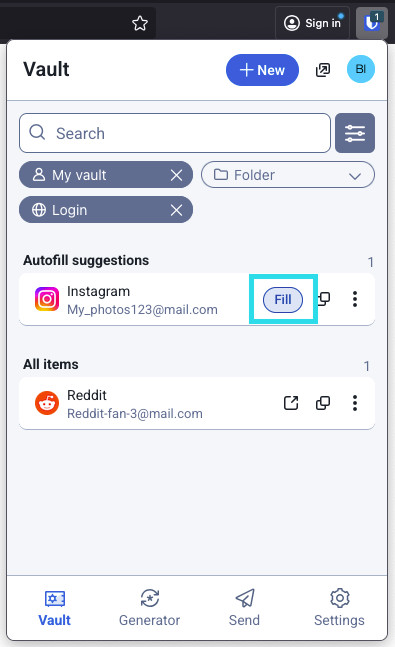
    
    <figure class="mb-10 print:[break-inside:avoid]"><div class=""><div class="relative overflow-hidden block max-w-full"><picture><source media="(max-width:400px)" srcset="https://bitwarden.com/assets/1pamjhdWn7obh8UBxXcIPF/1841242fa5299a780d53f3ae70e546b3/screenshot_5.png?w=400&fm=avif" type="image/avif"><source media="(max-width:800px)" srcset="https://bitwarden.com/assets/1pamjhdWn7obh8UBxXcIPF/1841242fa5299a780d53f3ae70e546b3/screenshot_5.png?w=800&fm=avif" type="image/avif"><source media="(min-width:801px)" srcset="https://bitwarden.com/assets/1pamjhdWn7obh8UBxXcIPF/1841242fa5299a780d53f3ae70e546b3/screenshot_5.png?w=395&fm=avif" type="image/avif">![Autofill via browser extension](https://bitwarden.com/assets/1pamjhdWn7obh8UBxXcIPF/1841242fa5299a780d53f3ae70e546b3/screenshot_5.png?w=395&fm=jpg)</source></source></source></picture></div></div><figcaption class="w-fit max-w-sm mx-auto text-center text-xs text-secondary-600 dark:text-secondary-300 mt-2 print:mt-1"><cite>Autofill via browser extension</cite></figcaption></figure>
2. Once logged in, find where you can change your password.
3. On the website's change password form, enter your **Current Password**, which you can copy and paste from Bitwarden using the **Copy** icon:
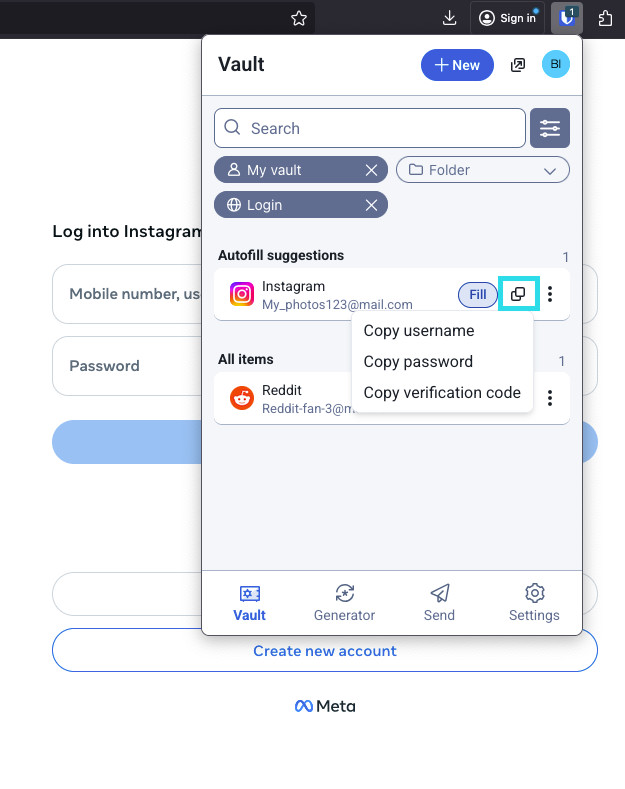
    
    <figure class="mb-10 print:[break-inside:avoid]"><div class=""><div class="relative overflow-hidden block max-w-full"><picture><source media="(max-width:400px)" srcset="https://bitwarden.com/assets/40l7cU1a0jzaTNUJXd5jPD/97b9ed67c0b255384ce84fa53fad2015/screenshot_2.png?w=400&fm=avif" type="image/avif"><source media="(max-width:800px)" srcset="https://bitwarden.com/assets/40l7cU1a0jzaTNUJXd5jPD/97b9ed67c0b255384ce84fa53fad2015/screenshot_2.png?w=800&fm=avif" type="image/avif"><source media="(min-width:801px)" srcset="https://bitwarden.com/assets/40l7cU1a0jzaTNUJXd5jPD/97b9ed67c0b255384ce84fa53fad2015/screenshot_2.png?w=625&fm=avif" type="image/avif">![Copy a password](https://bitwarden.com/assets/40l7cU1a0jzaTNUJXd5jPD/97b9ed67c0b255384ce84fa53fad2015/screenshot_2.png?w=625&fm=jpg)</source></source></source></picture></div></div><figcaption class="w-fit max-w-sm mx-auto text-center text-xs text-secondary-600 dark:text-secondary-300 mt-2 print:mt-1"><cite>Copy a password</cite></figcaption></figure>
4. Once your old password is filled in, open the login item in Bitwarden and select **Edit**.
5. In the **Password** box, select **Generate** and tweak your password settings to your liking. You can use to refresh icon until you get a password you like and, once you do, select **Use this password**. Moving from `Fido1234` to `X@Ln@x9J@&u@5n##B` can stop a hacker in their tracks.
6. Select **Save**.
7. Copy your new password and paste it into the New Password and Confirm Password fields back on the website.

Congratulations! Your login is now saved in Bitwarden for secure and easy use!

### Pin the extension

<div class="scrollspy group inline-block w-full relative" id="bkmrk--3"></div>Pinning the browser extension will ensure that it's easily accessible each time you open your browser. The procedure differs based on which browser you are using:

<div class="mb-16" id="bkmrk-chromefirefoxsafari"><div aria-orientation="horizontal" class="flex flex-wrap -mb-0.5 list-none rounded-md lg:rounded-none" role="tablist"><button aria-controls="panel-tab-chrome-2xZltHKtFs1Lqef7txDyCc" aria-selected="true" class="tab-header transition mt-0 mb-0 rounded-t-md mr-[3px] px-6 py-3 leading-tight text-base border-2 border-secondary-200 border-b-secondary-200 border-b-transparent text-secondary-800 dark:text-white dark:border-none font-medium bg-secondary-50 dark:bg-secondary-800" data-id="r29_tab_0" id="bkmrk-chrome" role="tab" tabindex="0" type="button">Chrome</button><button aria-controls="panel-tab-firefox-2xZltHKtFs1Lqef7txDyCc" aria-selected="false" class="tab-header transition mt-0 mb-0 rounded-t-md mr-[3px] px-6 py-3 leading-tight text-base border-2 border-secondary-200 border-b-secondary-200 border-b-transparent text-secondary-800 dark:text-white dark:border-none font-normal bg-secondary-200 hover:bg-secondary-100 dark:bg-secondary-600 dark:border-none" data-id="r29_tab_1" id="bkmrk-firefox" role="tab" tabindex="-1" type="button">Firefox</button><button aria-controls="panel-tab-safari-2xZltHKtFs1Lqef7txDyCc" aria-selected="false" class="tab-header transition mt-0 mb-0 rounded-t-md mr-[3px] px-6 py-3 leading-tight text-base border-2 border-secondary-200 border-b-secondary-200 border-b-transparent text-secondary-800 dark:text-white dark:border-none font-normal bg-secondary-200 hover:bg-secondary-100 dark:bg-secondary-600 dark:border-none" data-id="r29_tab_2" id="bkmrk-safari" role="tab" tabindex="-1" type="button">Safari</button></div><div><div aria-hidden="false" aria-labelledby="tab-tab-chrome-2xZltHKtFs1Lqef7txDyCc" class="tab-panel p-6 bg-secondary-50 border-2 border-secondary-200 rounded-sm rounded-tl-none dark:bg-secondary-800 dark:border-none block" role="tabpanel"><div class="contents">  
</div></div></div></div>Select the **Extensions** icon next to the address bar and select the **Pin** icon next to Bitwarden:
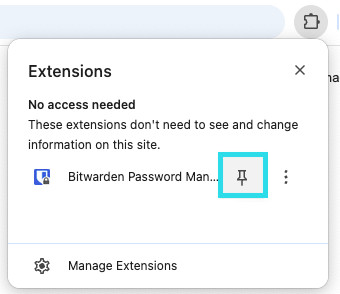
<div class="mb-16" id="bkmrk-pin-in-chrome"><div id="bkmrk-pin-in-chrome-1"><div aria-hidden="false" aria-labelledby="tab-tab-chrome-2xZltHKtFs1Lqef7txDyCc" class="tab-panel p-6 bg-secondary-50 border-2 border-secondary-200 rounded-sm rounded-tl-none dark:bg-secondary-800 dark:border-none block" id="bkmrk-pin-in-chrome-2" role="tabpanel"><div class="contents">  
</div><figure class="mb-10 print:[break-inside:avoid]"><div class=""><div class="relative overflow-hidden block max-w-full"><picture><source media="(max-width:400px)" srcset="https://bitwarden.com/assets/4cwP0QDHWh01v1K8nMV0ma/88b4b36c5b3e9d1fccffe7552880c485/chrome_pin.png?w=400&fm=avif" type="image/avif"><source media="(max-width:800px)" srcset="https://bitwarden.com/assets/4cwP0QDHWh01v1K8nMV0ma/88b4b36c5b3e9d1fccffe7552880c485/chrome_pin.png?w=800&fm=avif" type="image/avif"><source media="(min-width:801px)" srcset="https://bitwarden.com/assets/4cwP0QDHWh01v1K8nMV0ma/88b4b36c5b3e9d1fccffe7552880c485/chrome_pin.png?w=340&fm=avif" type="image/avif">![Pin in Chrome](https://bitwarden.com/assets/4cwP0QDHWh01v1K8nMV0ma/88b4b36c5b3e9d1fccffe7552880c485/chrome_pin.png?w=340&fm=jpg)</source></source></source></picture></div></div><figcaption class="w-fit max-w-sm mx-auto text-center text-xs text-secondary-600 dark:text-secondary-300 mt-2 print:mt-1"><cite>Pin in Chrome</cite></figcaption></figure></div></div></div>## Add a second account

<div class="scrollspy group inline-block w-full relative" id="bkmrk--4"></div>Do you have multiple Bitwarden accounts, perhaps one for personal use and one for work? The browser extension can be logged in to five accounts at once!

To login to an additional account, select the currently logged-in account from the top-right corner of the browser extension:

<figure class="mb-10 print:[break-inside:avoid]" id="bkmrk-browser-extension-ac"><div class=""><div class="relative overflow-hidden block max-w-full"><picture><source media="(max-width:400px)" srcset="https://bitwarden.com/assets/7xbbMZ89zcTHz6ee0cA1MK/8d8972a6b995b3fd7367f248c9c60d69/screenshot_3.png?w=400&fm=avif" type="image/avif"><source media="(max-width:800px)" srcset="https://bitwarden.com/assets/7xbbMZ89zcTHz6ee0cA1MK/8d8972a6b995b3fd7367f248c9c60d69/screenshot_3.png?w=800&fm=avif" type="image/avif"><source media="(min-width:801px)" srcset="https://bitwarden.com/assets/7xbbMZ89zcTHz6ee0cA1MK/8d8972a6b995b3fd7367f248c9c60d69/screenshot_3.png?w=440&fm=avif" type="image/avif">![Browser extension account switching](https://bitwarden.com/assets/7xbbMZ89zcTHz6ee0cA1MK/8d8972a6b995b3fd7367f248c9c60d69/screenshot_3.png?w=440&fm=jpg)</source></source></source></picture></div></div><figcaption class="w-fit max-w-sm mx-auto text-center text-xs text-secondary-600 dark:text-secondary-300 mt-2 print:mt-1"><cite>Browser extension account switching</cite></figcaption></figure>Once you have opened the account switching menu, select + **Add account**:

<figure class="mb-10 print:[break-inside:avoid]" id="bkmrk-browser-extension-ad"><div class=""><div class="relative overflow-hidden block max-w-full"><picture><source media="(max-width:400px)" srcset="https://bitwarden.com/assets/343trVk3zLCF7Z12uA5wjO/ac2f56fc907372335f30d1dbf68116a1/screenshot_4.png?w=400&fm=avif" type="image/avif"><source media="(max-width:800px)" srcset="https://bitwarden.com/assets/343trVk3zLCF7Z12uA5wjO/ac2f56fc907372335f30d1dbf68116a1/screenshot_4.png?w=800&fm=avif" type="image/avif"><source media="(min-width:801px)" srcset="https://bitwarden.com/assets/343trVk3zLCF7Z12uA5wjO/ac2f56fc907372335f30d1dbf68116a1/screenshot_4.png?w=438&fm=avif" type="image/avif">![Browser extension Add account](https://bitwarden.com/assets/343trVk3zLCF7Z12uA5wjO/ac2f56fc907372335f30d1dbf68116a1/screenshot_4.png?w=438&fm=jpg)</source></source></source></picture></div></div><figcaption class="w-fit max-w-sm mx-auto text-center text-xs text-secondary-600 dark:text-secondary-300 mt-2 print:mt-1"><cite>Browser extension Add account</cite></figcaption></figure>Once you log in to your second account, you can quickly swap between them from the same menu, which will also show the current status of each account's vault (*locked or unlocked*). If you log out of one of these accounts, it will be removed from this list.

<section class="max-w-8xl mx-auto" id="bkmrk-account-switching-on"><p class="callout info">Account switching on the browser extension is not available on Safari at this time.</p>

</section>## Next steps

<div class="scrollspy group inline-block w-full relative" id="bkmrk--5"></div>Now that you have mastered the basics let's dig into one more action that you will take regularly, **Autofill** and **Auto-save**, and three recommended setup steps; easier vault **unlocking**, **pinning** the extension to your browser, and **disabling the browser's built-in** password manager:

### Disable a built-in password manager

<div class="scrollspy group inline-block w-full relative" id="bkmrk--6"></div>Most web browsers will automatically save your passwords by default, but experts generally agree that [built-in password managers are more vulnerable](https://www.wired.com/2016/08/browser-password-manager-probably-isnt-enough/) than dedicated solutions such as Bitwarden. Learn more about [manually disabling a browser's built-in password manager](https://bitwarden.com/help/disable-browser-autofill/#manually-disable-a-browsers-built-in-password-manager).

### Autofill a login

<div class="scrollspy group inline-block w-full relative" id="bkmrk--7"></div>There are lots of ways to autofill credentials with Bitwarden browser extensions! The basic method is to open the Bitwarden browser extension while you're on the website's login page and, in the **Vault** tab, select the **Fill** button for the suggested item:

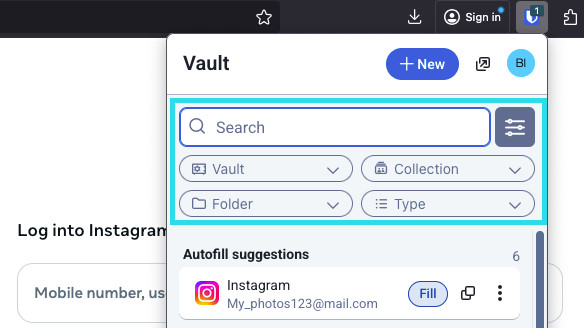
<figure class="mb-10 print:[break-inside:avoid]" id="bkmrk-autofill-via-browser"><div class=""><div class="relative overflow-hidden block max-w-full"><picture><source media="(max-width:400px)" srcset="https://bitwarden.com/assets/1pamjhdWn7obh8UBxXcIPF/1841242fa5299a780d53f3ae70e546b3/screenshot_5.png?w=400&fm=avif" type="image/avif"><source media="(max-width:800px)" srcset="https://bitwarden.com/assets/1pamjhdWn7obh8UBxXcIPF/1841242fa5299a780d53f3ae70e546b3/screenshot_5.png?w=800&fm=avif" type="image/avif"><source media="(min-width:801px)" srcset="https://bitwarden.com/assets/1pamjhdWn7obh8UBxXcIPF/1841242fa5299a780d53f3ae70e546b3/screenshot_5.png?w=395&fm=avif" type="image/avif">![Autofill via browser extension](https://bitwarden.com/assets/1pamjhdWn7obh8UBxXcIPF/1841242fa5299a780d53f3ae70e546b3/screenshot_5.png?w=395&fm=jpg)</source></source></source></picture></div></div><figcaption class="w-fit max-w-sm mx-auto text-center text-xs text-secondary-600 dark:text-secondary-300 mt-2 print:mt-1"><cite>Autofill via browser extension</cite></figcaption></figure>Note that, when you have logins saved for a website you're trying to log in to, Bitwarden browser extensions will overlay a notification bubble reporting the number of logins you have for that website. Those items will appear at the top of your **Autofill suggestions.** You can filter what will appear in the suggestions and what's displayed in the **All items** list using the filter dropdown menus, which can be shown or hidden using the <span class="rich-icon" title="sliders"></span> button:

<figure class="mb-10 print:[break-inside:avoid]" id="bkmrk-browser-extension-fi"><div class=""><div class="relative overflow-hidden block max-w-full"><picture><source media="(max-width:400px)" srcset="https://bitwarden.com/assets/12UsFuA2sxbUCBMIczJsxv/689221013fac56ddb555ed9dabddbdc9/screenshot_6.png?w=400&fm=avif" type="image/avif"><source media="(max-width:800px)" srcset="https://bitwarden.com/assets/12UsFuA2sxbUCBMIczJsxv/689221013fac56ddb555ed9dabddbdc9/screenshot_6.png?w=800&fm=avif" type="image/avif"><source media="(min-width:801px)" srcset="https://bitwarden.com/assets/12UsFuA2sxbUCBMIczJsxv/689221013fac56ddb555ed9dabddbdc9/screenshot_6.png?w=584&fm=avif" type="image/avif">![Browser extension filters and suggestions](https://bitwarden.com/assets/12UsFuA2sxbUCBMIczJsxv/689221013fac56ddb555ed9dabddbdc9/screenshot_6.png?w=584&fm=jpg)</source></source></source></picture></div></div><figcaption class="w-fit max-w-sm mx-auto text-center text-xs text-secondary-600 dark:text-secondary-300 mt-2 print:mt-1"><cite>Browser extension filters and suggestions</cite></figcaption></figure>There are plenty of other methods and ways of customizing autofill from your browser extension, including [context menus and keyboard shortcuts](https://bitwarden.com/help/auto-fill-browser/).

### Autosave a login

<div class="scrollspy group inline-block w-full relative" id="bkmrk--8"></div>Bitwarden browser extensions offer an array of [in-browser notifications](https://bitwarden.com/help/autosave-from-browser-extensions/) that compare your decrypted data with data that you enter into login, registration, and similar web forms.

When you see this banner, select **Save** to add a new or updated login item with the username, password, and URI. You can also choose to **Select folder...** for the item if it's new, or **Edit** the item before saving:
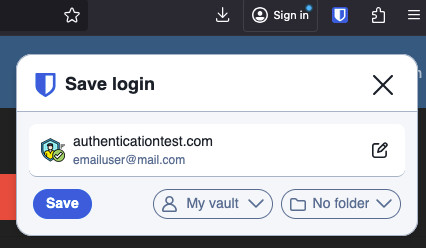
<figure class="mb-10 print:[break-inside:avoid]" id="bkmrk-ask-to-add-login"><div class=""><div class="relative overflow-hidden block max-w-full"><picture><source media="(max-width:400px)" srcset="https://bitwarden.com/assets/4vsurEuH5deik26BWn4n1p/82757186b081890fbe92b4d73baeae53/screenshot_7.png?w=400&fm=avif" type="image/avif"><source media="(max-width:800px)" srcset="https://bitwarden.com/assets/4vsurEuH5deik26BWn4n1p/82757186b081890fbe92b4d73baeae53/screenshot_7.png?w=800&fm=avif" type="image/avif"><source media="(min-width:801px)" srcset="https://bitwarden.com/assets/4vsurEuH5deik26BWn4n1p/82757186b081890fbe92b4d73baeae53/screenshot_7.png?w=426&fm=avif" type="image/avif">![Ask to add login](https://bitwarden.com/assets/4vsurEuH5deik26BWn4n1p/82757186b081890fbe92b4d73baeae53/screenshot_7.png?w=426&fm=jpg)</source></source></source></picture></div></div><figcaption class="w-fit max-w-sm mx-auto text-center text-xs text-secondary-600 dark:text-secondary-300 mt-2 print:mt-1"><cite>Ask to add login</cite></figcaption></figure>Learn more about [Autosave with the browser extension](https://bitwarden.com/help/autosave-from-browser-extensions/).

<section class="max-w-8xl mx-auto" id="bkmrk-did-you-know-that-yo">####   


<p class="callout info">Did you know that you can save and autofill passkeys with the Bitwarden browser extension? Learn more about passkeys here.</p>

</section>### Unlock with PIN or biometrics

<div class="scrollspy group inline-block w-full relative" id="bkmrk--10"></div>For fast access to your credentials, setup a [PIN](https://bitwarden.com/help/unlock-with-pin/) or [biometrics](https://bitwarden.com/help/biometrics/) to unlock your vault. To setup a PIN, for example:

1. Open the **Settings** tab.
2. In the **Account security** section, check the **Unlock with PIN** checkbox.
3. Enter the desired PIN code in the input box. PIN codes can be any combination of characters (a-z, 0-9, $, #, etc.)

<section class="max-w-8xl mx-auto" id="bkmrk-optional%3A-the-pre-ch"><p class="callout info">Optional: The pre-checked option Ask for biometrics on launch will require you to enter your master password instead of a PIN when your browser restarts. If you want to be able to unlock with a PIN when you browser restarts, uncheck this option.</p>

</section>### Browser Pop-out

<div class="scrollspy group inline-block w-full relative" id="bkmrk--11"></div>The Bitwarden browser extension has a pop-out feature that will allow you to reposition the client while using your internet browser. To pop-out the browser extension, select the icon shown in the following screenshot:

<figure class="mb-10 print:[break-inside:avoid]" id="bkmrk-browser-extension-po"><div class=""><div class="relative overflow-hidden block max-w-full"><picture><source media="(max-width:400px)" srcset="https://bitwarden.com/assets/1cbJy0jLBmSQmRumvYzVwp/a9e43f4c154686249056924eb3e56323/pop_out_screenshot.png?w=400&fm=avif" type="image/avif"><source media="(max-width:800px)" srcset="https://bitwarden.com/assets/1cbJy0jLBmSQmRumvYzVwp/a9e43f4c154686249056924eb3e56323/pop_out_screenshot.png?w=800&fm=avif" type="image/avif"><source media="(min-width:801px)" srcset="https://bitwarden.com/assets/1cbJy0jLBmSQmRumvYzVwp/a9e43f4c154686249056924eb3e56323/pop_out_screenshot.png?w=407&fm=avif" type="image/avif">![Browser extension pop-out](https://bitwarden.com/assets/1cbJy0jLBmSQmRumvYzVwp/a9e43f4c154686249056924eb3e56323/pop_out_screenshot.png?w=407&fm=jpg)</source></source></source></picture></div></div><figcaption class="w-fit max-w-sm mx-auto text-center text-xs text-secondary-600 dark:text-secondary-300 mt-2 print:mt-1"><cite>Browser extension pop-out</cite></figcaption></figure>The browser extension will not observe to your chosen [vault timeout](https://bitwarden.com/help/vault-timeout/) settings when popped-out.

#### Make Bitwarden your default password manager

The Bitwarden browser extension has a built-in setting to disable your browser's default password manager. To use this setting:

1. Navigate to the **settings** tab in the Bitwarden browser extension and then select **Autofill**.
2. Click to enable the **Make Bitwarden your default password manager**.
    
    <figure class="mb-10 print:[break-inside:avoid]"><div class=""><div class="relative overflow-hidden block max-w-full"><picture><source media="(max-width:400px)" srcset="https://bitwarden.com/assets/5fyBdu5X6JCLu2UsaqYUO0/abfb44cb460314112805bfd0312c1f8f/2025-10-14_12-44-35.png?w=400&fm=avif" type="image/avif"><source media="(max-width:800px)" srcset="https://bitwarden.com/assets/5fyBdu5X6JCLu2UsaqYUO0/abfb44cb460314112805bfd0312c1f8f/2025-10-14_12-44-35.png?w=800&fm=avif" type="image/avif"><source media="(min-width:801px)" srcset="https://bitwarden.com/assets/5fyBdu5X6JCLu2UsaqYUO0/abfb44cb460314112805bfd0312c1f8f/2025-10-14_12-44-35.png?w=459&fm=avif" type="image/avif">![Make Bitwarden default password manager](https://bitwarden.com/assets/5fyBdu5X6JCLu2UsaqYUO0/abfb44cb460314112805bfd0312c1f8f/2025-10-14_12-44-35.png?w=459&fm=jpg)</source></source></source></picture></div></div><figcaption class="w-fit max-w-sm mx-auto text-center text-xs text-secondary-600 dark:text-secondary-300 mt-2 print:mt-1"><cite>Make Bitwarden default password manager</cite></figcaption></figure>
3. A dialogue will appear on screen, select **allow** to give Bitwarden permission to make changes to your browser settings.