# Authentication Server (Authentik)
# Creating a New Account
### Step 1
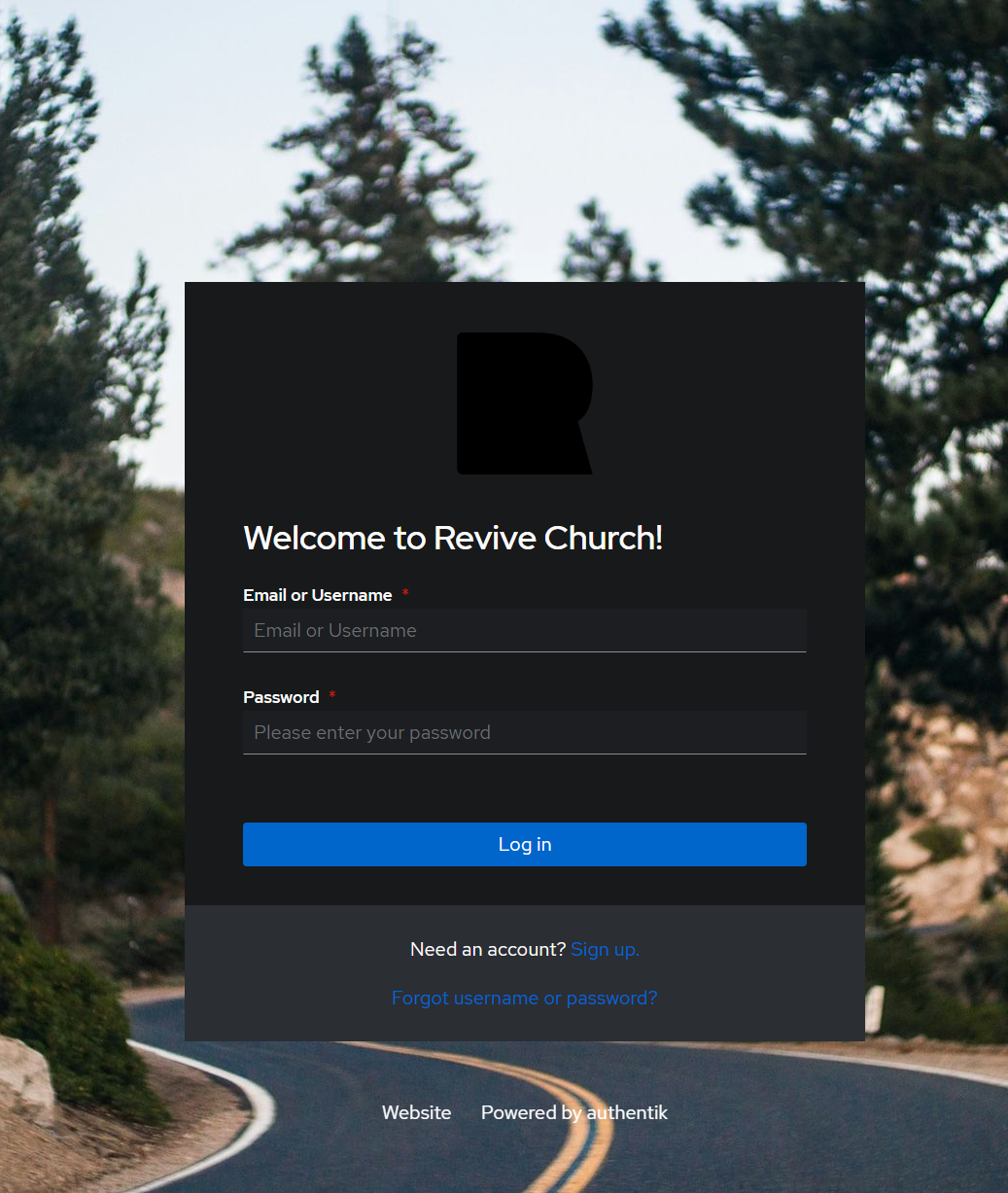
Visit [auth.revivenovi.org](https://auth.revivenovi.org)
[](https://wiki.revivenovi.org/uploads/images/gallery/2025-10/JZIimage.png)
### Step 2
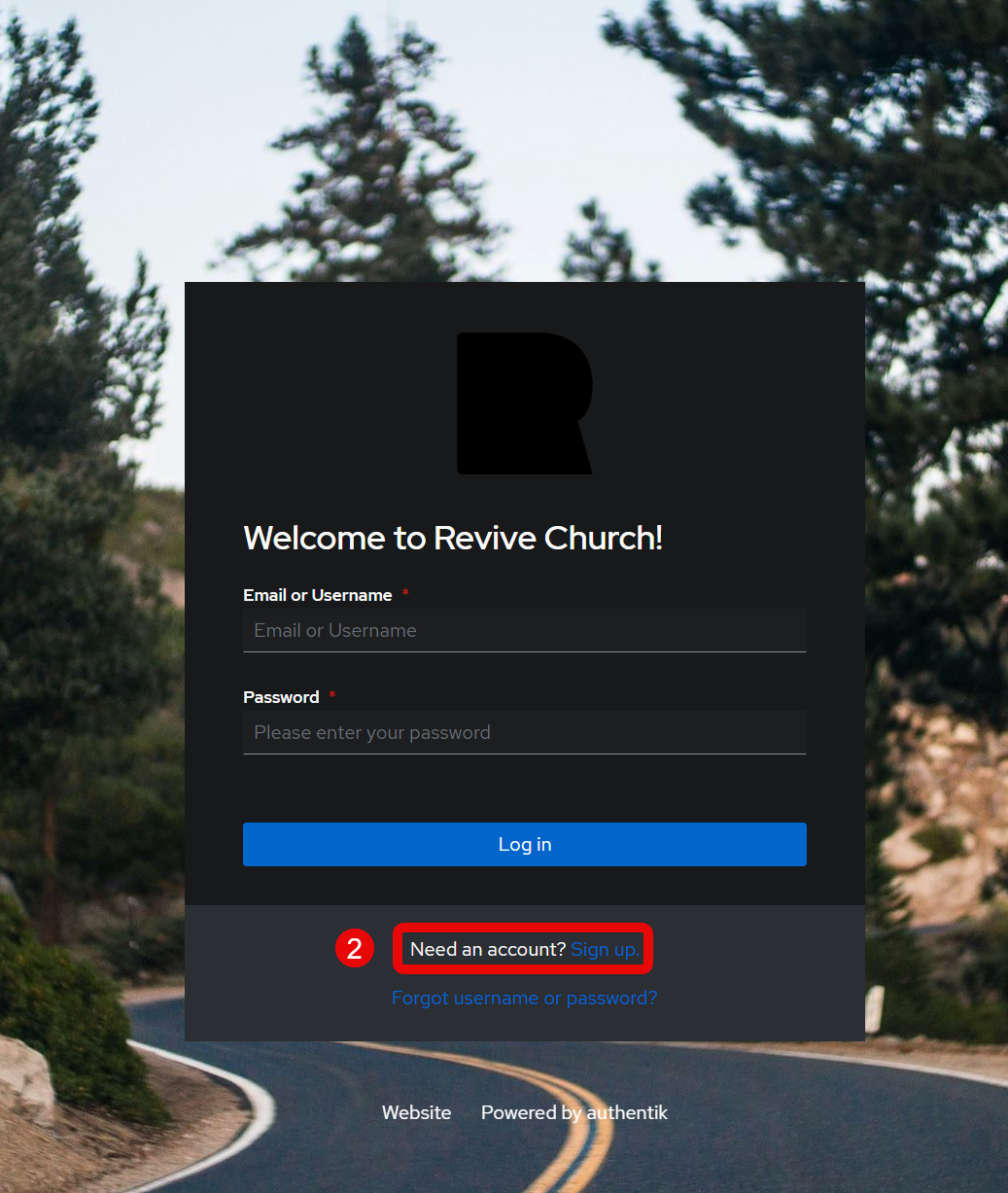
Click on *Sign up* under the password field
[](https://wiki.revivenovi.org/uploads/images/gallery/2025-10/DXoimage.png)
### Step 3
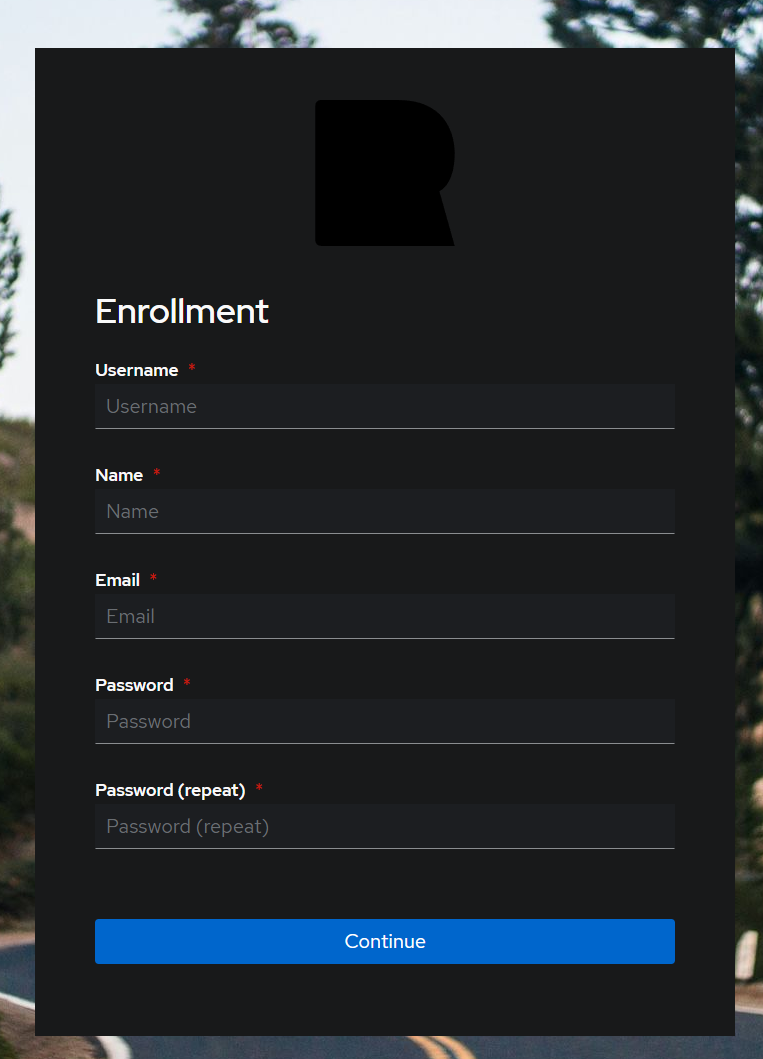
Fill in the necessary information and click *Continue *to continue
[](https://wiki.revivenovi.org/uploads/images/gallery/2025-10/tNuimage.png)
### Step 4
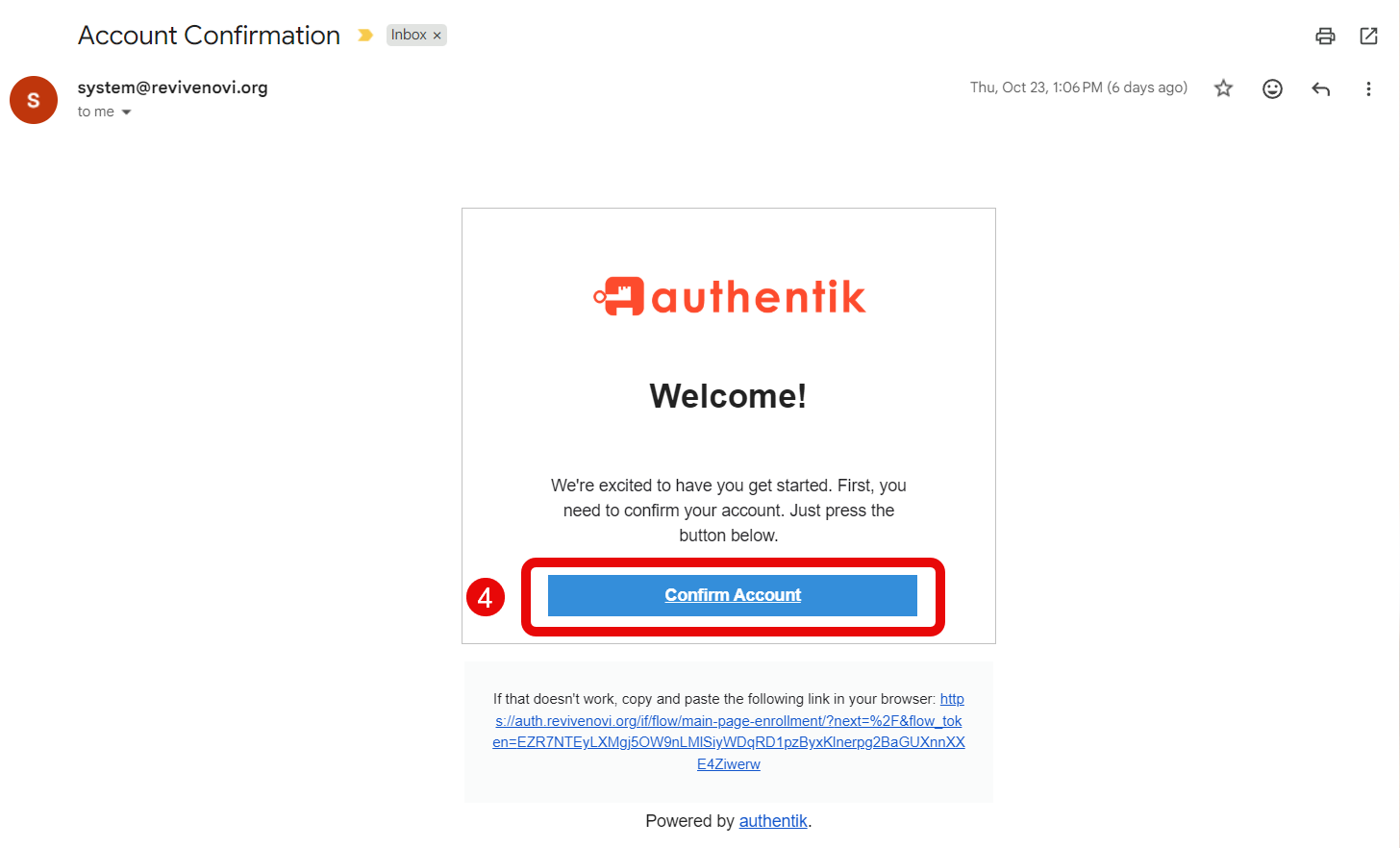
Go to the email you used to sign up and click on the confirmation button to confirm your account information. If you do not see your email in your inbox within 2 minutes, please check your spam folder as it might have been flagged as spam accidentally.
[](https://wiki.revivenovi.org/uploads/images/gallery/2025-10/0tCimage.png)
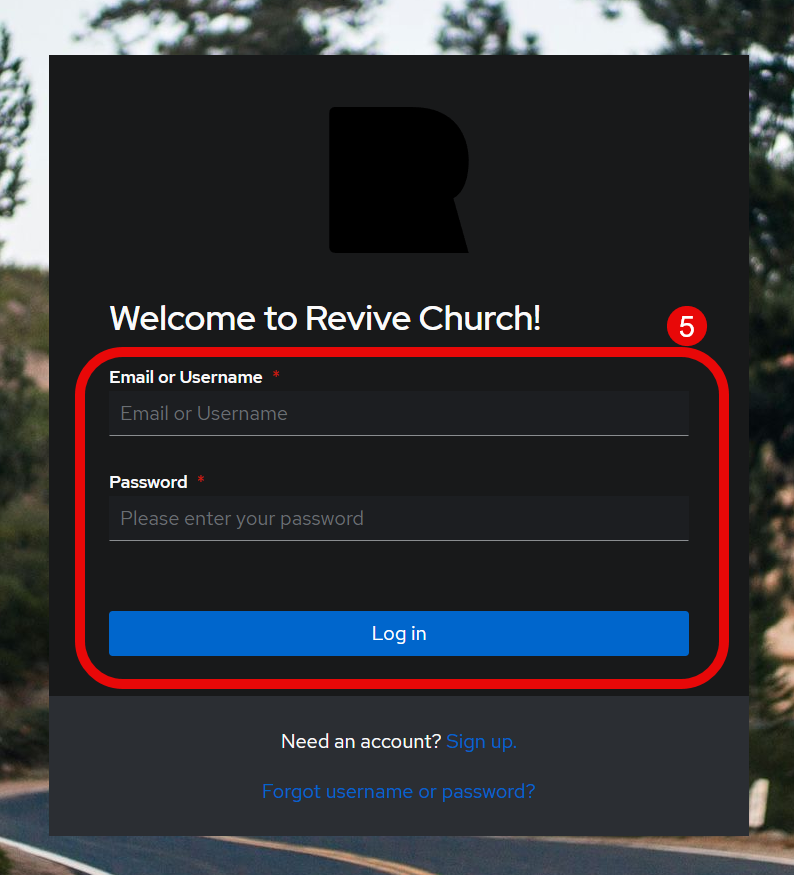
### Step 5
Log into the authentication server. That's it!
[](https://wiki.revivenovi.org/uploads/images/gallery/2025-10/eTdimage.png)